Check a vehicle's current status (Moving, Idling, Stopped)
Check a vehicle's current status (Moving, Idling, Stopped)
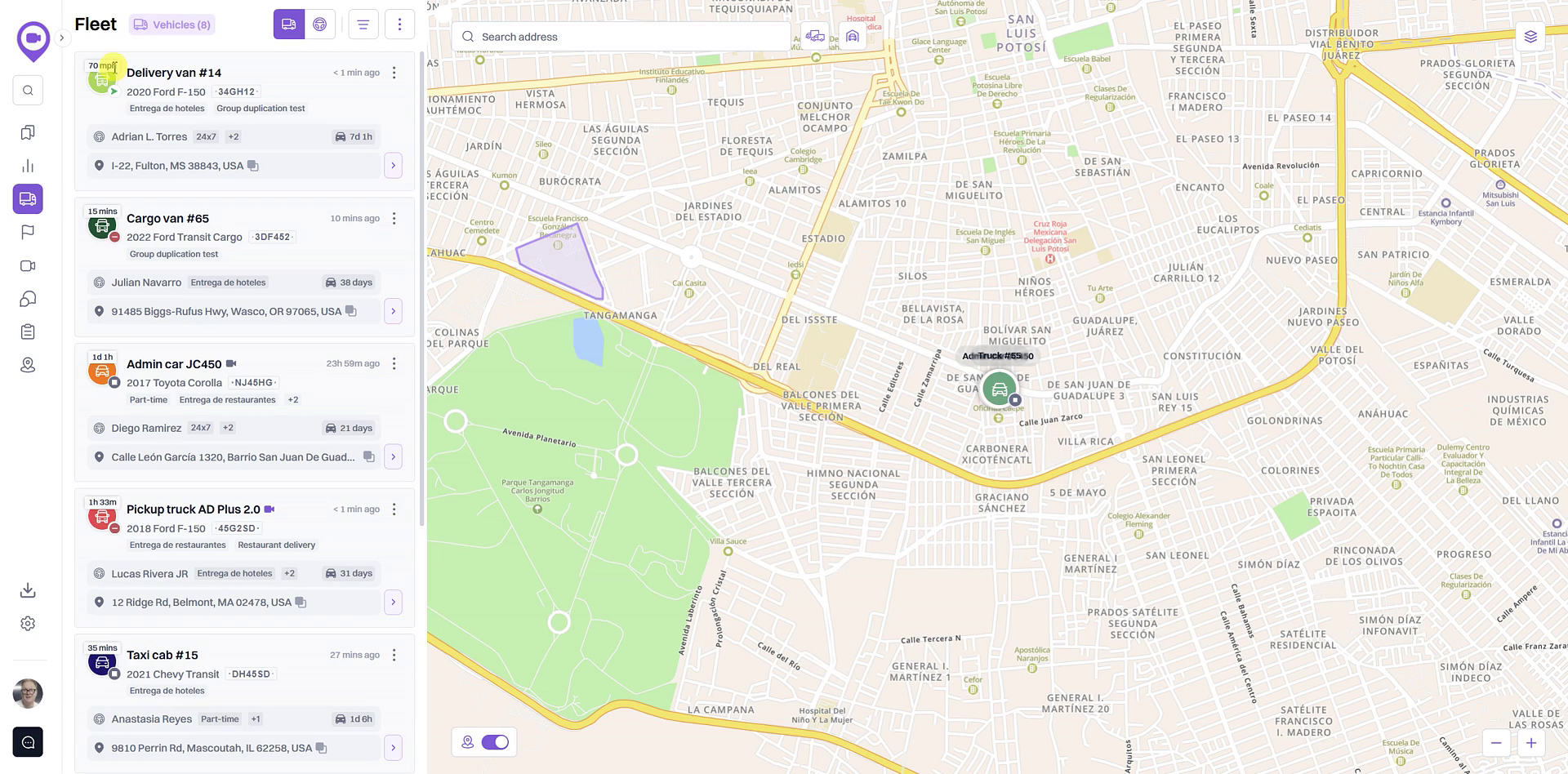
This guide shows you how to check the real-time status of any vehicle in your fleet directly from the Fleet Map. Understanding a vehicle's status—whether it's moving, idling, or stopped—is essential for effective daily operations and monitoring.
- Navigate to the Fleet Map to see the list of all your vehicles on the left-hand side.
- Locate the vehicle you want to check in the list.
- Observe the status indicator on the vehicle's card to understand its current state. The system displays one of three statuses:
Summary
This article explains how to quickly determine a vehicle's current operational status from the Fleet Map. By viewing the status indicators on each vehicle card, you can see at-a-glance whether a vehicle is Moving, Idling, or Stopped, providing immediate insight into your fleet's activity.
Related
- Overview of the Fleet Map and Vehicle List
- Find a specific vehicle on the map
- Search for vehicles by their current status
Related Articles
How to Search for Vehicles by Their Current Status
How to Search for Vehicles by Their Current Status This guide shows you how to filter your vehicle list to find vehicles based on their real-time status. By learning how to use these filters, you can quickly see which vehicles are currently moving, ...Find a specific vehicle on the map
Find a specific vehicle on the map This article explains how to quickly locate any vehicle in your fleet on the live map. Following this simple step allows you to immediately see a vehicle's current position without needing to search or pan manually. ...Overview of the Fleet Map and Vehicle List
Overview of the Fleet Map and Vehicle List The Fleet view is your central dashboard for real-time monitoring of your vehicles. It combines an interactive map with a comprehensive list, allowing you to see the current location and status of your ...How to Sort Your Vehicle List
How to Sort Your Vehicle List Organize your fleet view to quickly find the vehicles that matter most. This guide shows you how to sort your vehicle list by name, or by status such as which vehicles have been moving most recently or stopped the ...Status
If the worklist contains 100 or more units, the Status tab is available by default. This tab contains summary information about the units from the work list. Here you can access the connection and motion state of the units and see the geofences where ...