Overview of the Fleet Map and Vehicle List
Overview of the Fleet Map and Vehicle List
The Fleet view is your central dashboard for real-time monitoring of your vehicles. It combines an interactive map with a comprehensive list, allowing you to see the current location and status of your entire fleet at a glance. You will land on this page immediately after logging in.
The Vehicle List
On the left side of your screen, the Vehicles list displays a card for each vehicle in your fleet. Clicking on any card will automatically center the map on that vehicle's current location.
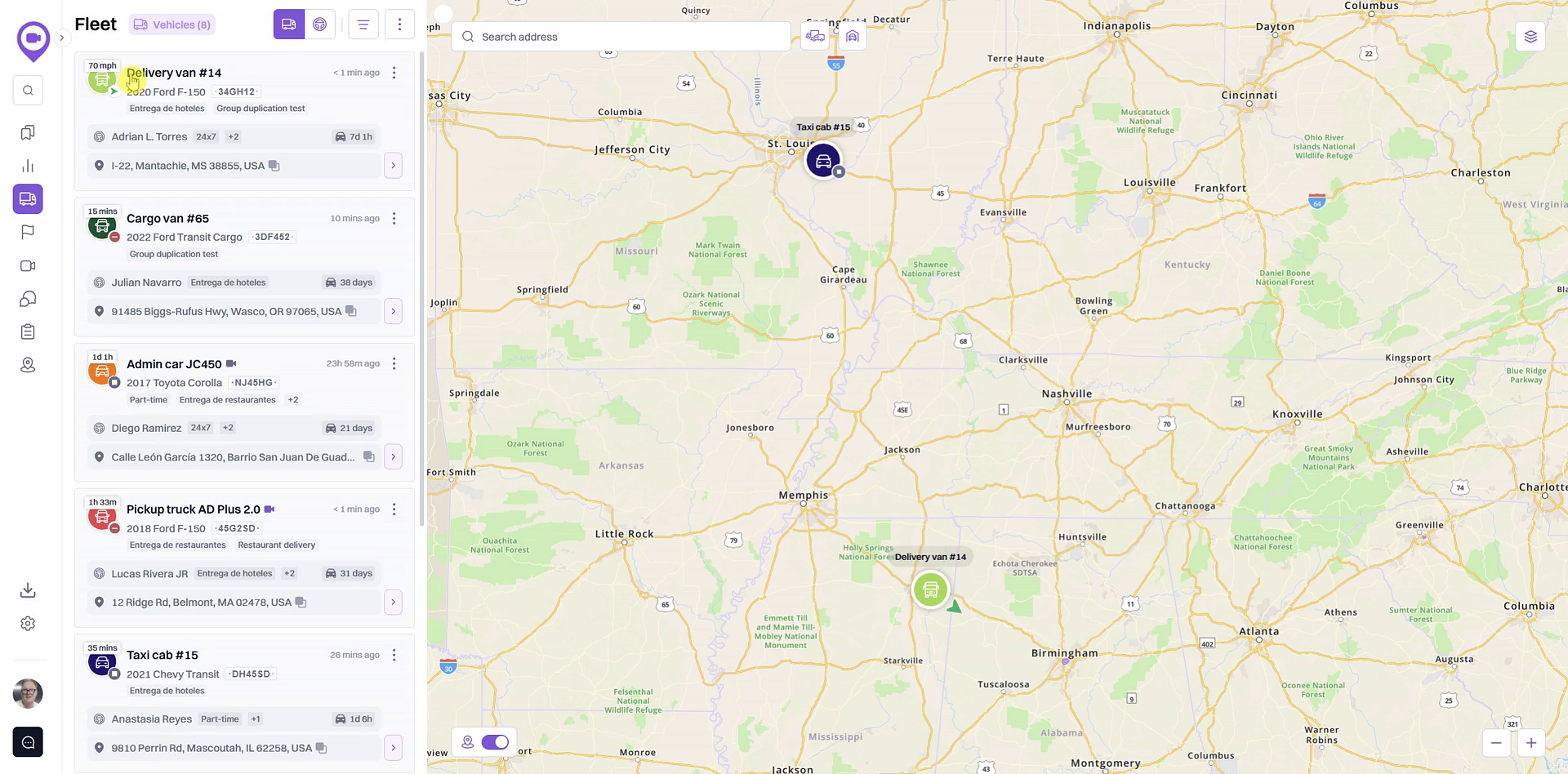
Each card provides key information at a glance:
- Vehicle Name & Details: Includes the vehicle's assigned name, year, make, model, and license plate.
- Current Status: Shows whether the vehicle is Moving, Idling, or Stopped. For moving vehicles, the speed is displayed; for idling or stopped vehicles, the duration of the status is shown.
- Assigned Driver & Groups: Displays the currently assigned driver and any groups the vehicle belongs to, such as "Restaurant delivery" or "Part-time".
- Location: Provides the vehicle's current street address.
- Last Updated: Shows how recently the vehicle's location and status were reported.
The Interactive Map
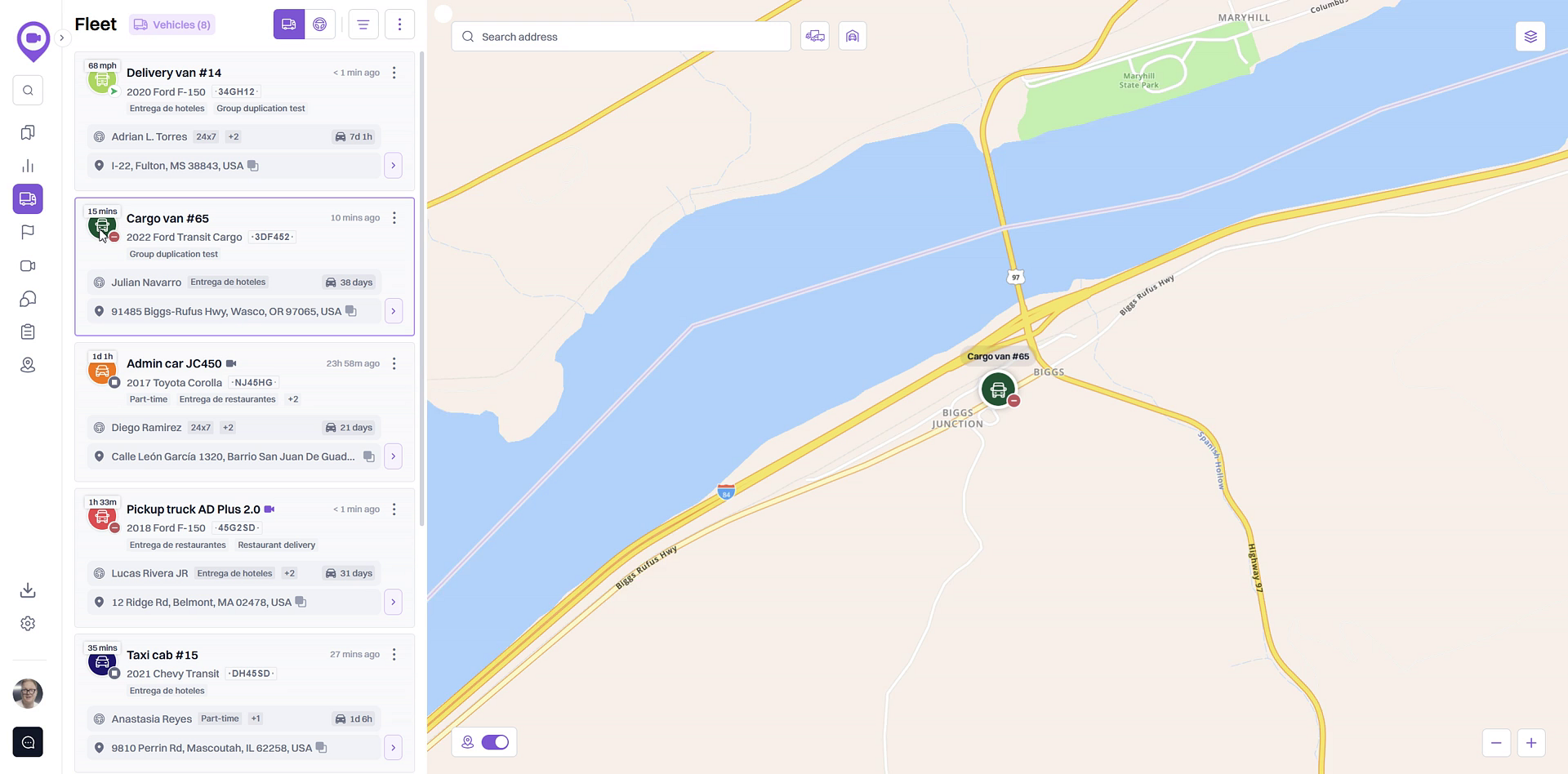
The map provides a live, visual representation of your fleet's positions. Vehicle icons correspond to their list entries, allowing you to quickly assess geographical distribution and activity. When you select a vehicle from the list, the map automatically zooms in to its location.
Organizing Your View
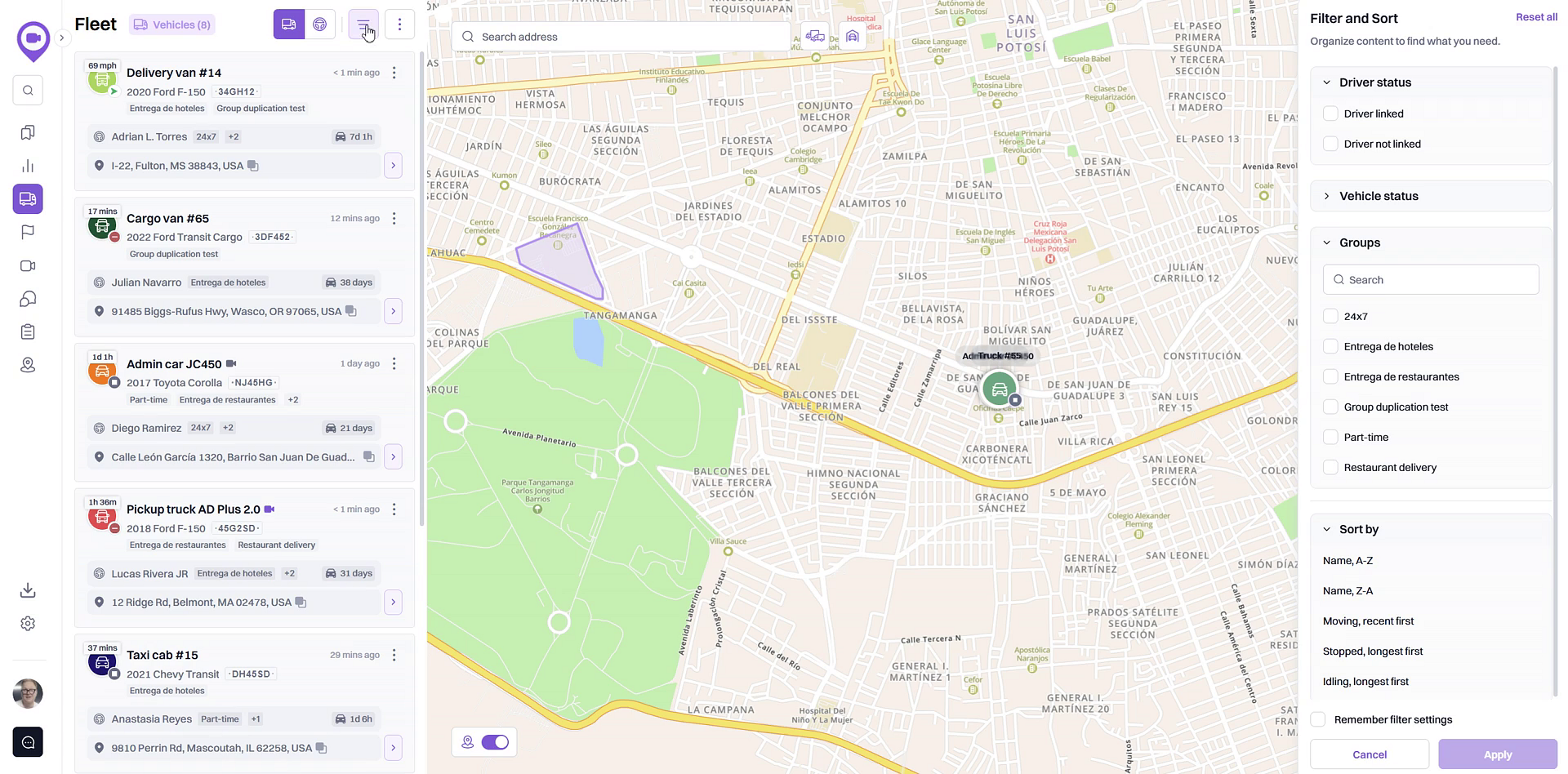
At the top of the panel, you'll find tools to organize and customize your view to find the information you need quickly.
- Vehicle and Driver Views: You can toggle between the default Vehicles list and a Drivers list. The driver view is useful for seeing which drivers are active, what vehicles they are operating, and their current driving scores.
- Filter and Sort: Use the Filter and Sort button to narrow down the list. You can filter by vehicle status (e.g., show only idling vehicles), driver assignment, or by a specific group. You can also sort the list alphabetically or by activity, such as showing the most recently moving vehicles first.
Viewing Vehicle Details and Trip History
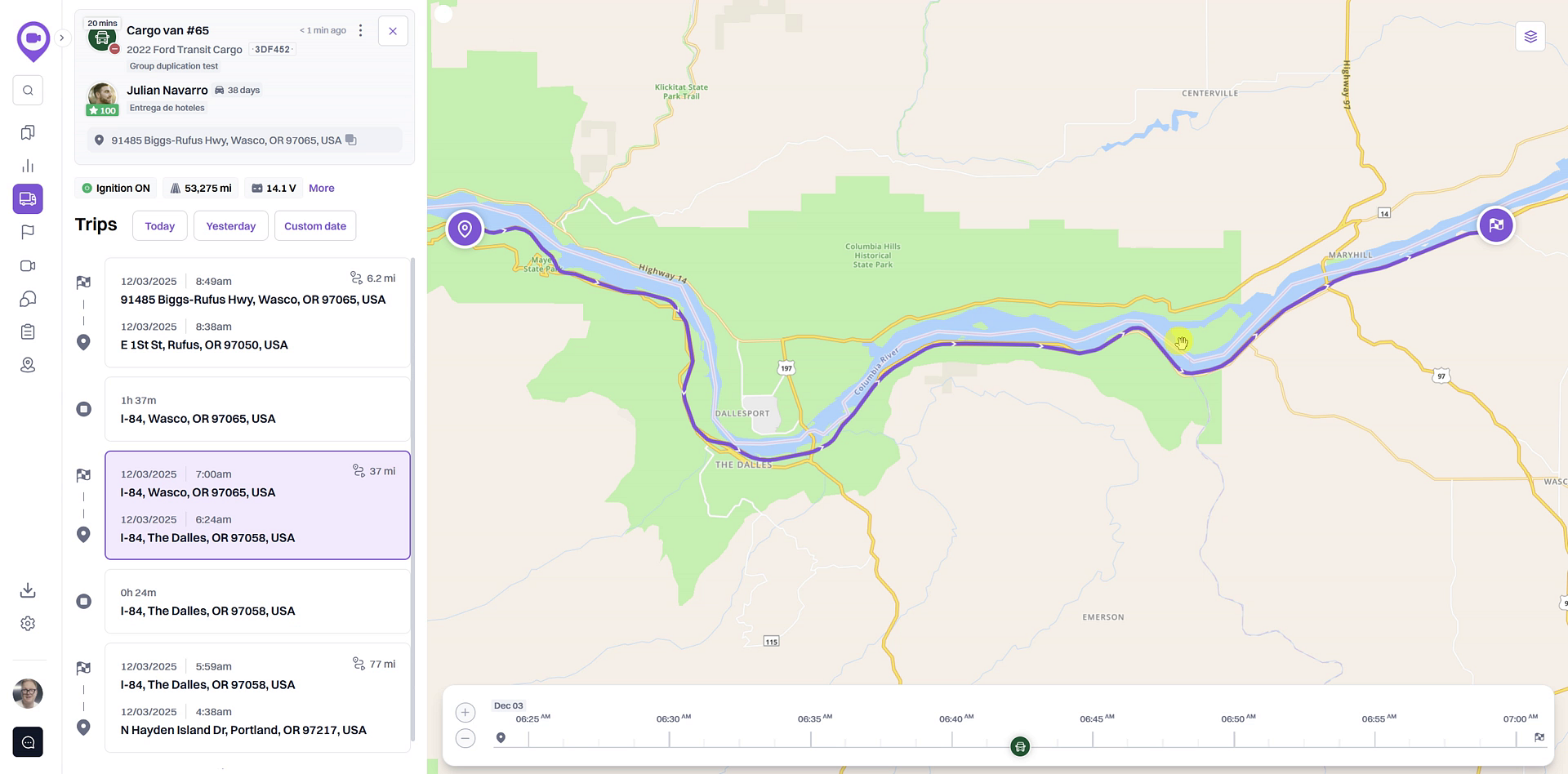
To access more detailed information, click the arrow icon on the right side of any vehicle card. This opens the vehicle details view, where you can find:
- Engine Data and Sensors: Access detailed telematics data, including odometer readings, fuel levels, vehicle battery voltage, and engine RPM (availability may vary by vehicle and device).
- Trips History: View a log of the vehicle's recent trips and stops. You can select preset date ranges like Today or Yesterday, or choose a custom date range of up to seven days. Selecting a trip will display its full path on the map and activate a timeline scrubber at the bottom, allowing you to replay the journey and see the vehicle's location at any point in time.
Tips for Using This Section
To quickly identify vehicles that may require attention, use the filter to show only those that have been idling or stopped for an extended period. This can help you manage fuel consumption and ensure drivers are on schedule.
Summary
The Fleet Map and Vehicle List serves as your primary command center for real-time operational awareness. This integrated view combines a live map with a dynamic, filterable list of all your assets, providing immediate insights into vehicle status, driver assignments, and location. From this screen, you can quickly access detailed vehicle data and dive into historical trip replays to get a complete picture of your fleet's activity.
Related
- Check a vehicle's current status (Moving, Idling, Stopped)
- Switch between vehicle and driver views
- View a vehicle's trip history
Related Articles
Find a specific vehicle on the map
Find a specific vehicle on the map This article explains how to quickly locate any vehicle in your fleet on the live map. Following this simple step allows you to immediately see a vehicle's current position without needing to search or pan manually. ...How to View Detailed Vehicle Information
How to View Detailed Vehicle Information This article shows you how to access the detailed information page for any vehicle in your fleet. This view provides a focused look at a vehicle's recent trips, sensor data, and historical routes on the map, ...Check a vehicle's current status (Moving, Idling, Stopped)
Check a vehicle's current status (Moving, Idling, Stopped) This guide shows you how to check the real-time status of any vehicle in your fleet directly from the Fleet Map. Understanding a vehicle's status—whether it's moving, idling, or stopped—is ...How to Switch Between Vehicle and Driver Views
How to Switch Between Vehicle and Driver Views This guide shows you how to switch between the vehicle and driver views on the Fleet map. Toggling between these views allows you to organize the list by either your physical assets or your personnel, ...Map
Map The map is available regardless of which panel is activated. Usually, it takes up most of the screen. Units and their traces, geofences and other elements can be displayed on the map. Map size can be adjusted in relation to the work area and the ...