How to Search for Vehicles by Their Current Status
How to Search for Vehicles by Their Current Status
This guide shows you how to filter your vehicle list to find vehicles based on their real-time status. By learning how to use these filters, you can quickly see which vehicles are currently moving, idling, or stopped, helping you manage your fleet more effectively.
- From the Fleet Map, click the Filter and sort icon located at the top of the vehicle list.
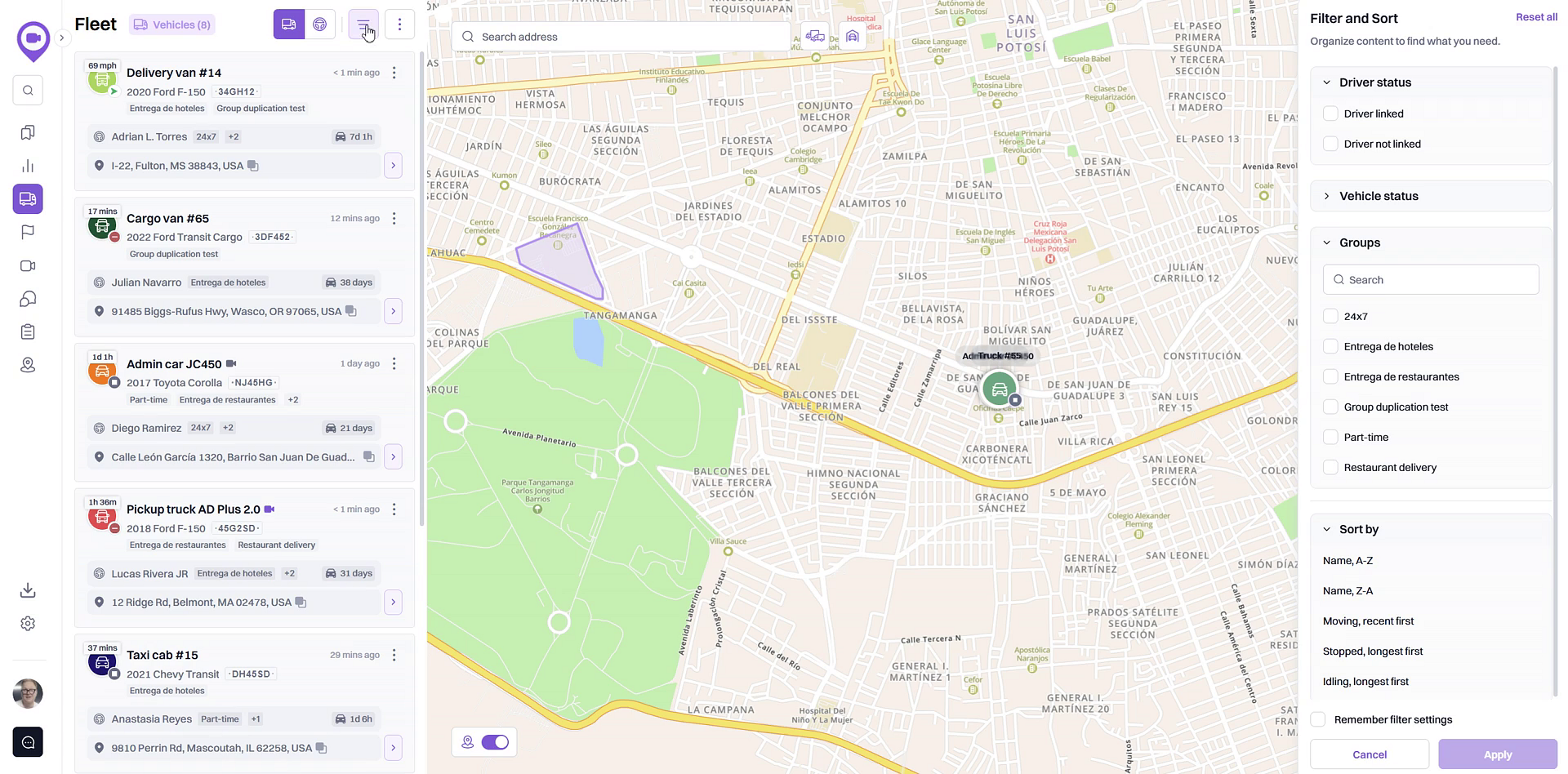
- In the Filter and Sort panel that appears, locate the Vehicle status section.
- Select the checkbox next to the status you want to view. You can choose from Moving, Idling, or Stopped. You may select more than one status at a time.
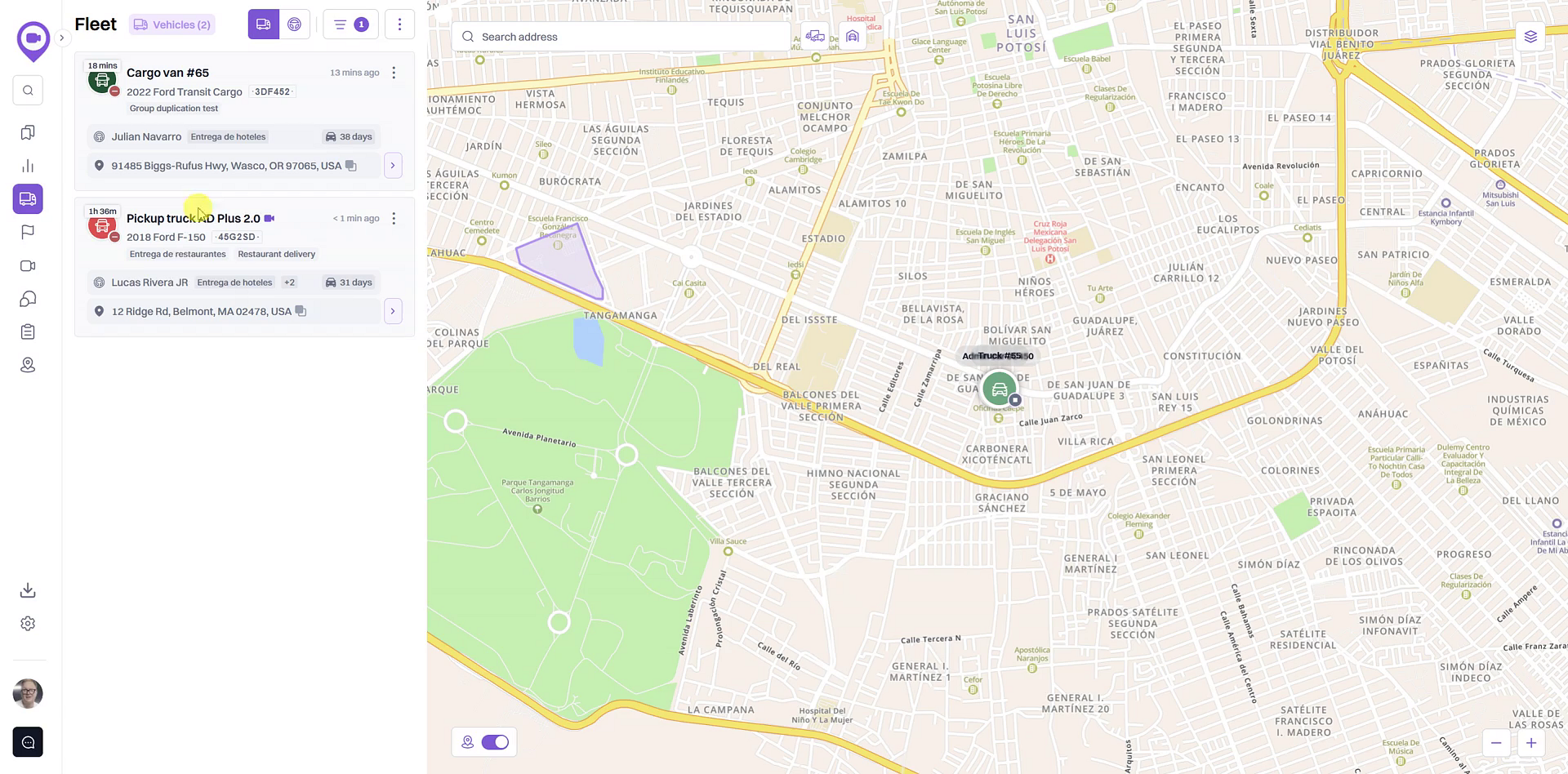
- Click the Apply button to update the list.
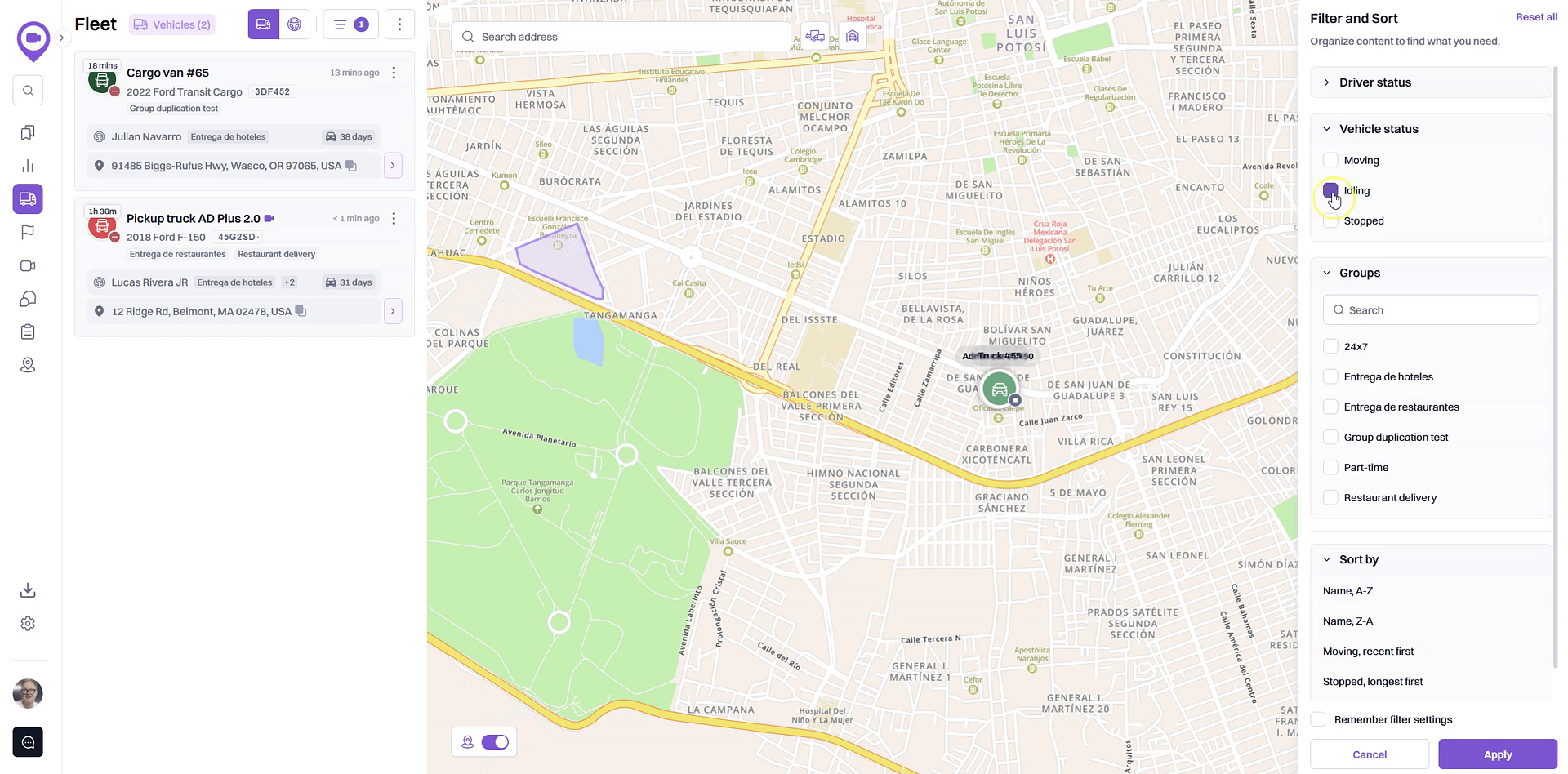
- The vehicle list will refresh to display only the vehicles that match your selected status. The map will also update to show only the filtered vehicles.
Tips
- To clear your selections and view all vehicles again, open the Filter and Sort panel and click Reset.
Summary
Filtering your fleet by vehicle status is a powerful way to organize your map view and focus on what matters most at any given moment. This feature allows you to quickly identify active vehicles, monitor idling times to reduce fuel costs, or confirm which vehicles are parked, giving you greater control over your daily operations.
Related
- Check a vehicle's current status (Moving, Idling, Stopped)
- Search for vehicles within a specific group
- Sort the vehicle list
Related Articles
Search for Vehicles by Driver Assignment
Search for Vehicles by Driver Assignment This guide shows you how to filter your vehicle list based on whether a driver is currently assigned. Following these steps will help you quickly identify vehicles that are in use or available for new ...Check a vehicle's current status (Moving, Idling, Stopped)
Check a vehicle's current status (Moving, Idling, Stopped) This guide shows you how to check the real-time status of any vehicle in your fleet directly from the Fleet Map. Understanding a vehicle's status—whether it's moving, idling, or stopped—is ...How to Search for Vehicles in a Specific Group
How to Search for Vehicles in a Specific Group This article shows you how to filter your vehicle list to display only the vehicles belonging to a specific group. This feature is useful for organizing large fleets, allowing you to focus on vehicles ...Navigation and Search Panel
The navigation and search panel is located on the left side of the window. It contains a list of sections which can be shown in the area of search results. Depending on the type of account and enabled services, the following sections may be ...Area of Search Results
The area of search results occupies most of the work area. Here you can see a table with the search results of the section selected in the navigation and search panel. The area can contain up to five tabs, that is, the results of five search requests ...