How to Create a Shareable Link to Track Vehicle Locations
How to Create a Shareable Link to Track Vehicle Locations
This article will show you how to create a secure, shareable link that allows people outside of your organization, such as customers or partners, to track the real-time location of specific vehicles. This is a great way to provide visibility without giving them full access to the platform.
- Navigate to Settings in the main side menu.
- Under the
Homebasesection, click Vehicles. - On the
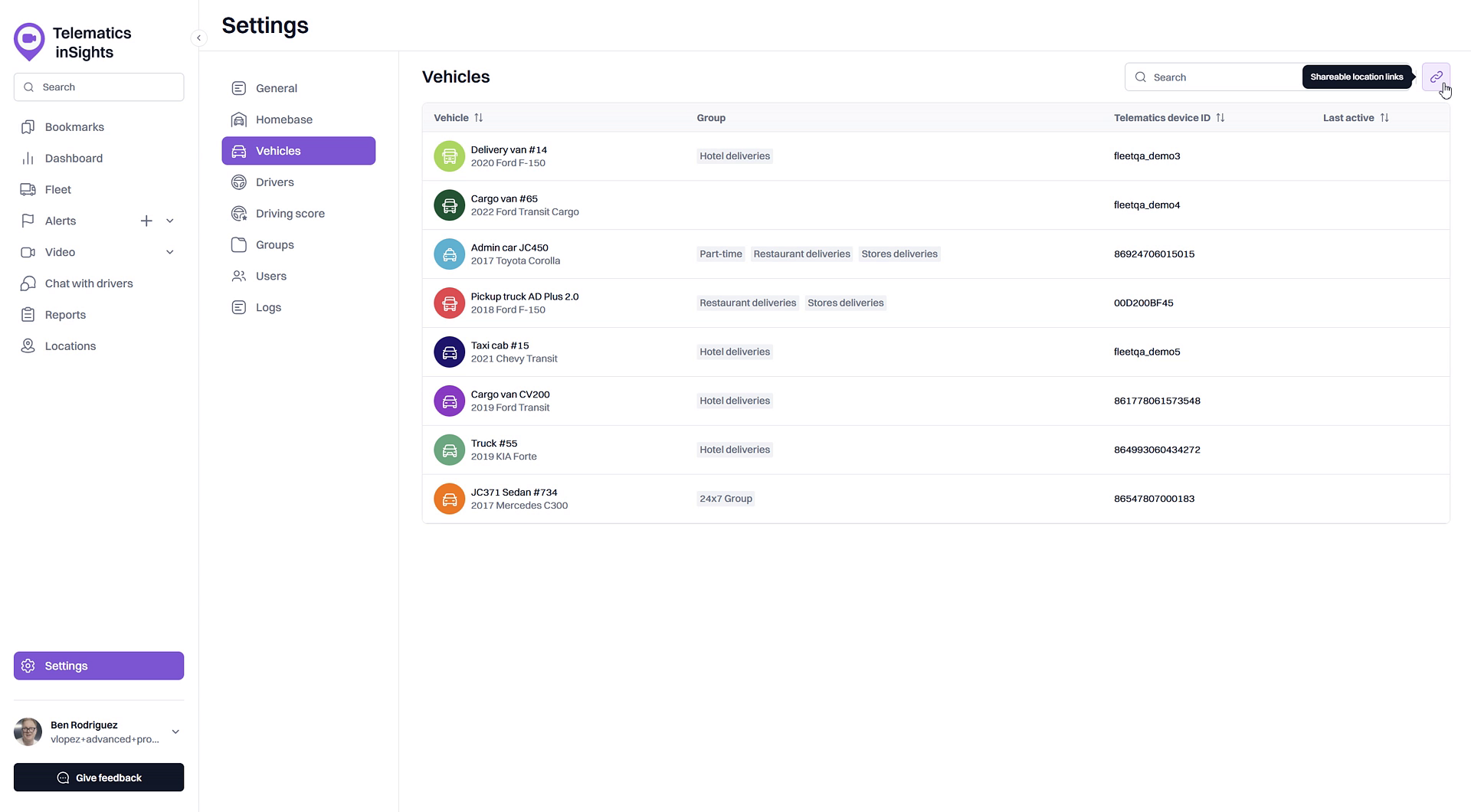
Vehiclespage, click the Manage sharable links icon in the top-right corner.
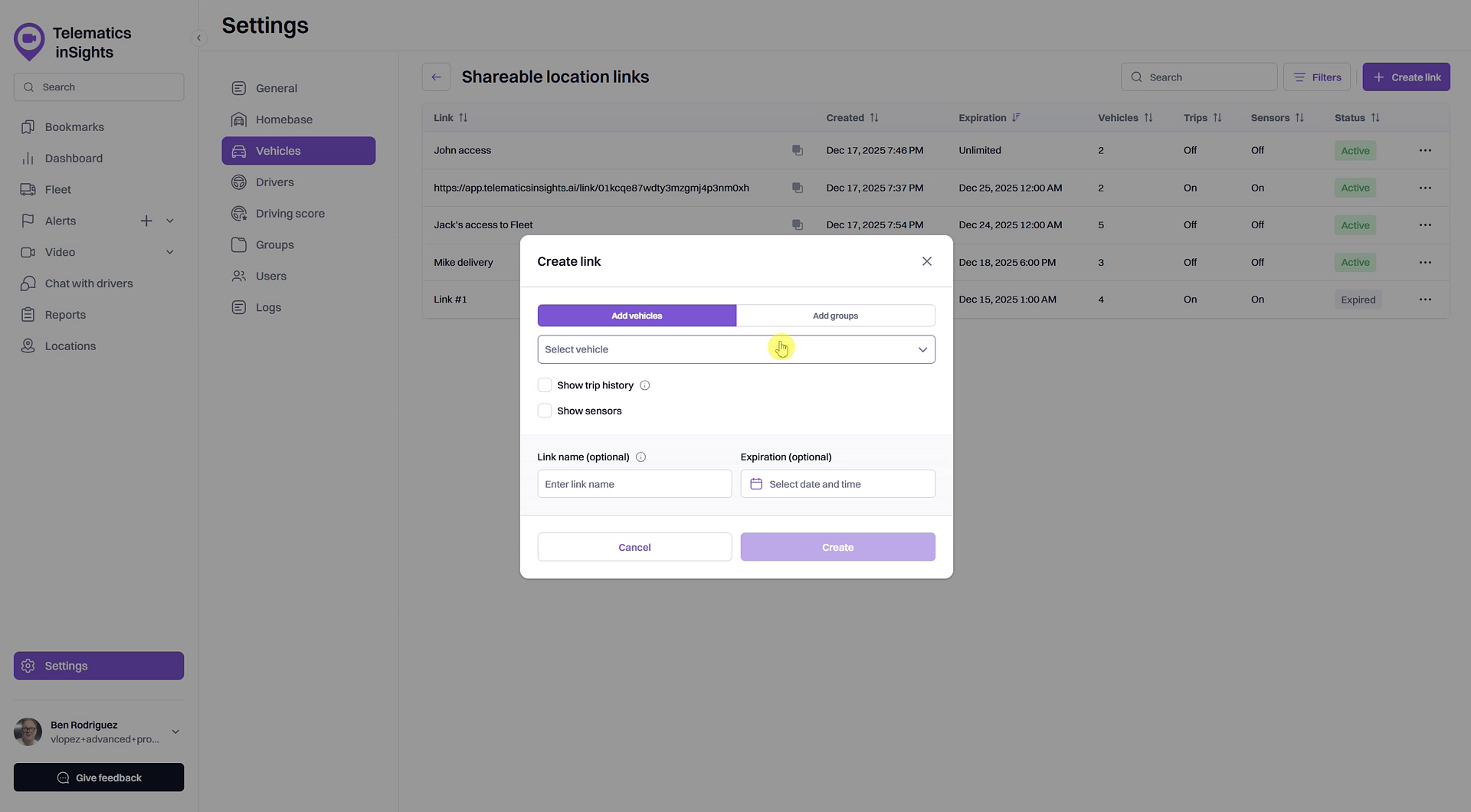
- Click the + Create link button.
- In the
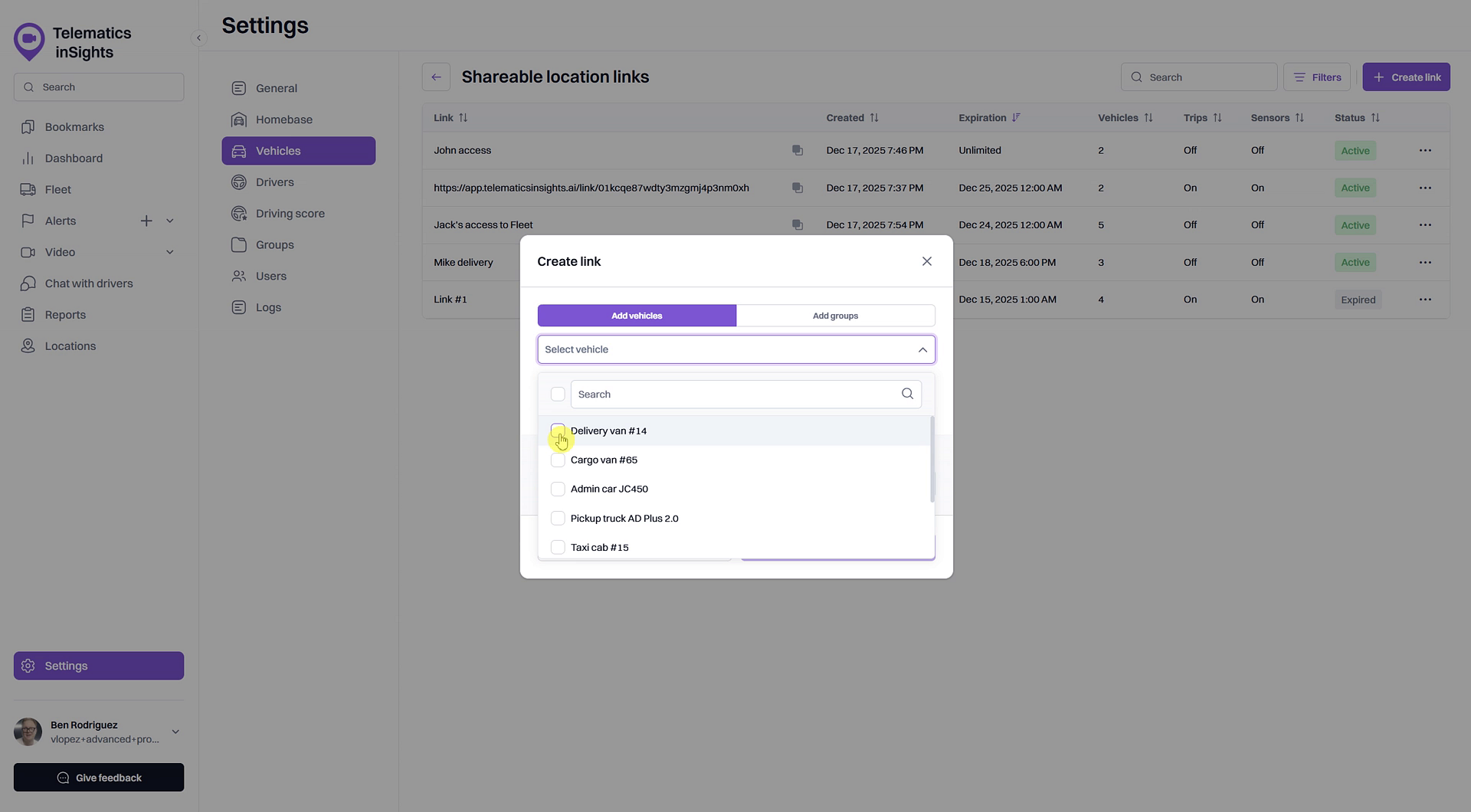
Create linkwindow, click the Select vehicle field to choose one or more vehicles to include in the link. You can also click the Add groups tab to add all vehicles from a group.
- (Optional) Check the Show trip history box to allow recipients to view the vehicle's trip history from the moment the link is activated.
- (Optional) Check the Show sensors box to allow recipients to see engine data and sensor readings for the selected vehicles.
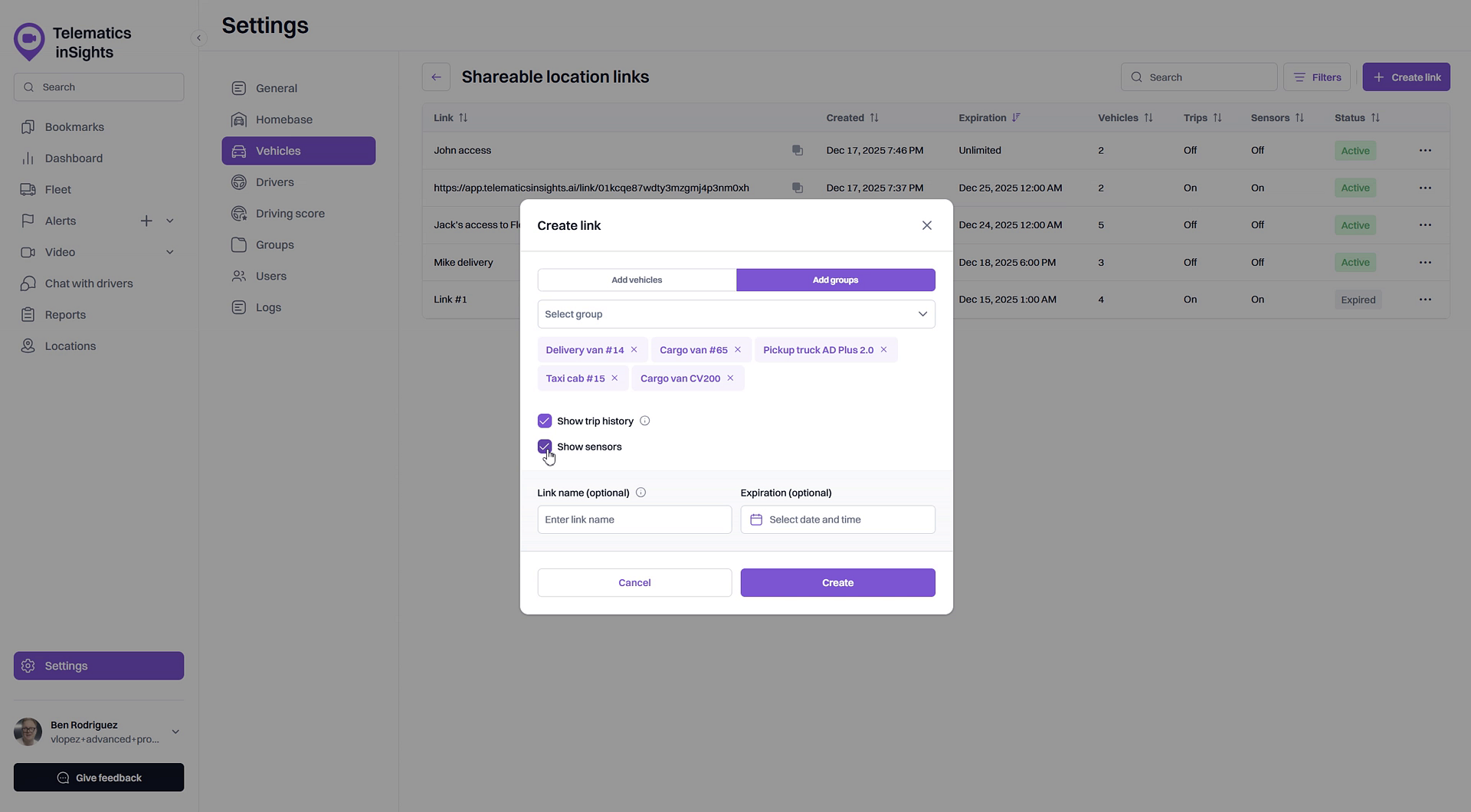
- (Optional) Enter a name for your link in the Link name field for easy identification.
- (Optional) Set an Expiration date and time. If you do not set an expiration date, the link will not expire.
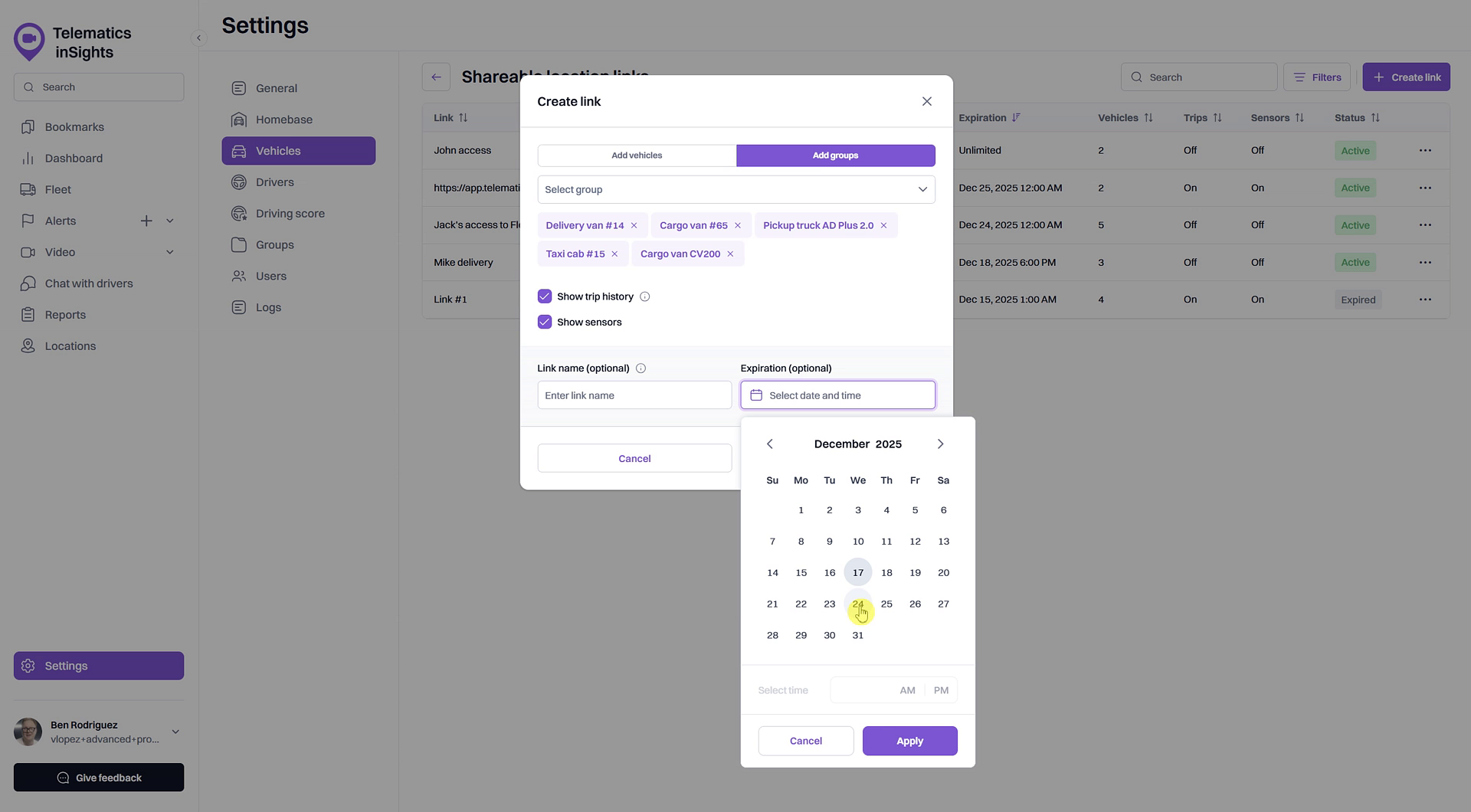
- Click Create.
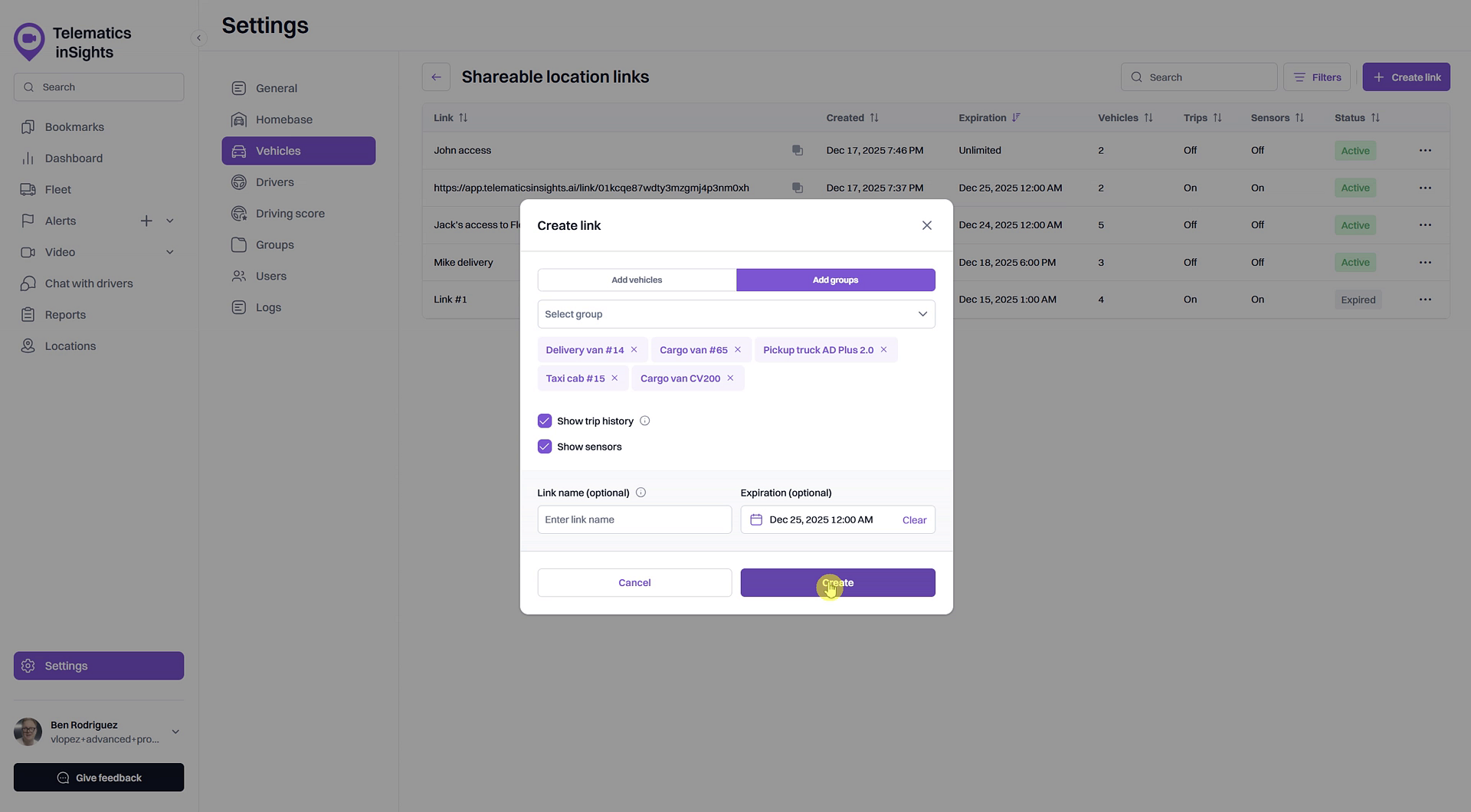
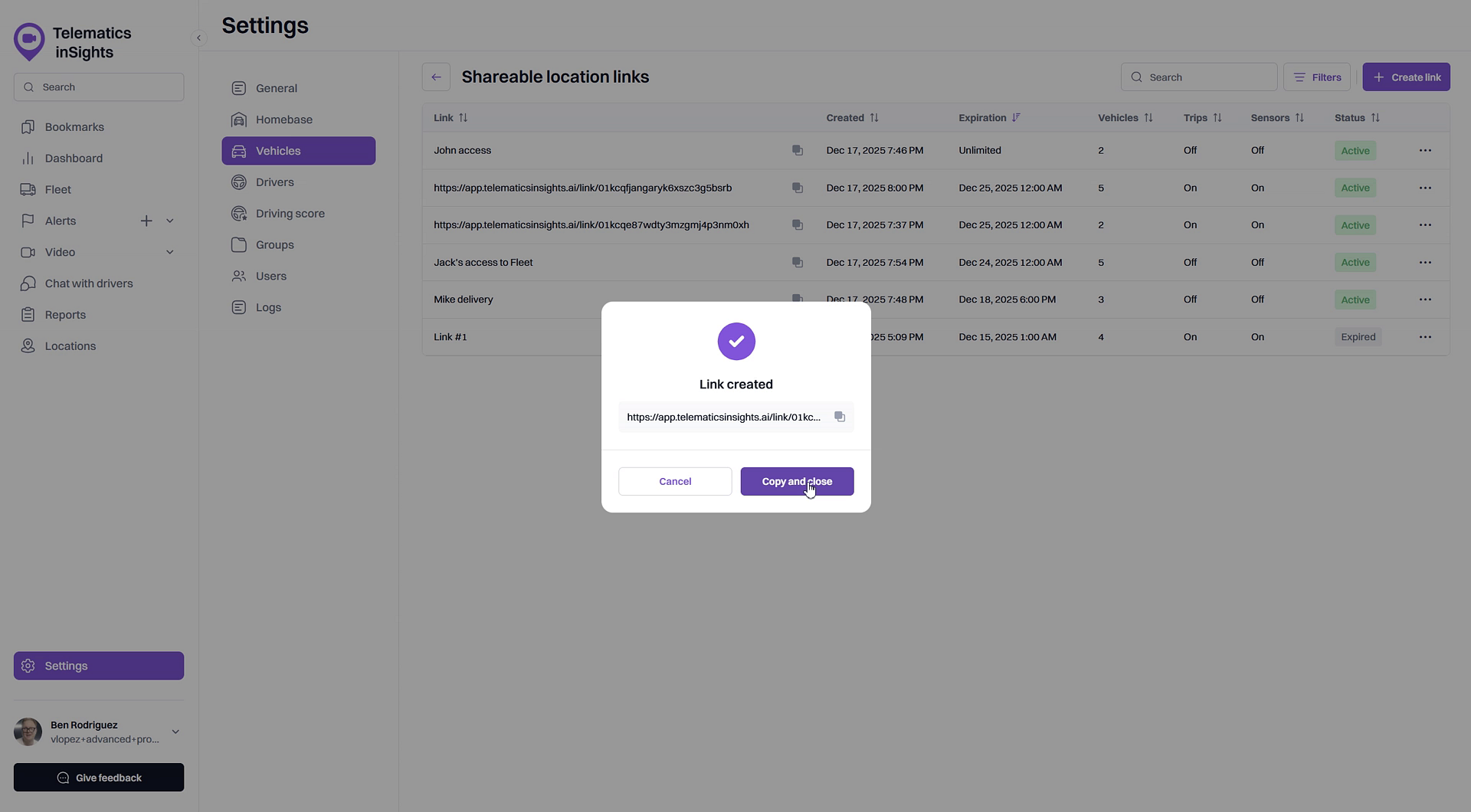
- A confirmation pop-up will appear with the generated link. Click Copy and close to copy the URL to your clipboard and share it with the intended recipient.
Tip
When you enable Show trip history, please note that recipients will only be able to see trips that occurred after the link was created. Historical data from before the link's creation will not be visible.
Summary
Creating a shareable location link provides a secure and convenient way to offer real-time vehicle tracking to external stakeholders like customers or partners. This feature allows you to grant temporary, view-only access to specific vehicles or groups, enhancing transparency and improving customer service without compromising your account's security.
Related
Related Articles
How to Edit or Reactivate a Shareable Location Link
How to Edit or Reactivate a Shareable Location Link After creating a shareable location link, you may need to change its settings or reactivate it after it has expired. This guide shows you how to edit an active link's permissions and how to ...What a Recipient Sees with a Shareable Location Link
What a Recipient Sees with a Shareable Location Link When you share a vehicle's location using a shareable link, the recipient gets access to a special, read-only view of your fleet map. This article explains what they will see and what information ...Track Parameters
Track Parameters Track parameters include colour, line thickness, markers, the Show annotations and Apply trip detector options. You should specify the parameters before requesting the track. Once the track is mapped, you can't change the parameters. ...7.2 Track Parameters
Track Colour - there are four colour settings for the track: by trips, by speed, by sensor and single. Markers - you can enable markers to highlight the places of significant events on the track. Possible Markers: Annotations (optional ...Vehicle Monitoring
Click on Live View, and select Vehicle Monitoring and a popup window will appear which will display all camera units under your account: If you hover your curser over a unit, three icons appear to the right of the unit as seen below: Key Targeting; ...