How to Edit or Reactivate a Shareable Location Link
How to Edit or Reactivate a Shareable Location Link
After creating a shareable location link, you may need to change its settings or reactivate it after it has expired. This guide shows you how to edit an active link's permissions and how to reactivate an expired one. You'll need access to the platform's settings.
Edit a Shareable Location Link
You can edit a link to change which vehicles are included or to adjust what information the recipient can see, such as trip history and sensor data.
- Navigate to Settings in the main menu, then select the Vehicles tab.
- Click the Shareable location links button in the top-right corner of the page.
- Find the active link you want to modify in the list. Click the three-dots menu at the end of its row and select Edit.
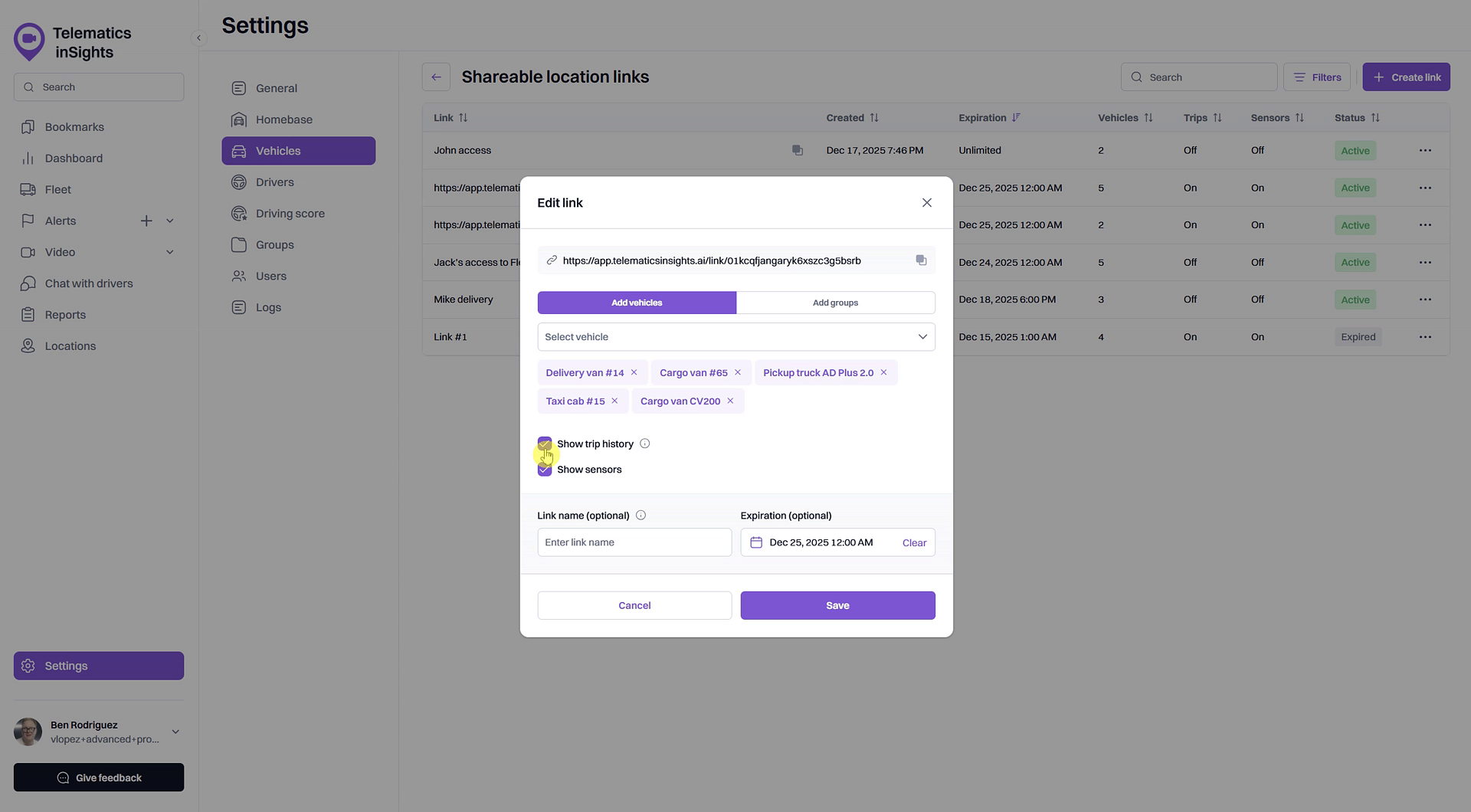
- In the Edit link window, adjust the settings as needed. For example, you can uncheck the boxes for Show trip history or Show sensors to restrict the information the recipient can view.
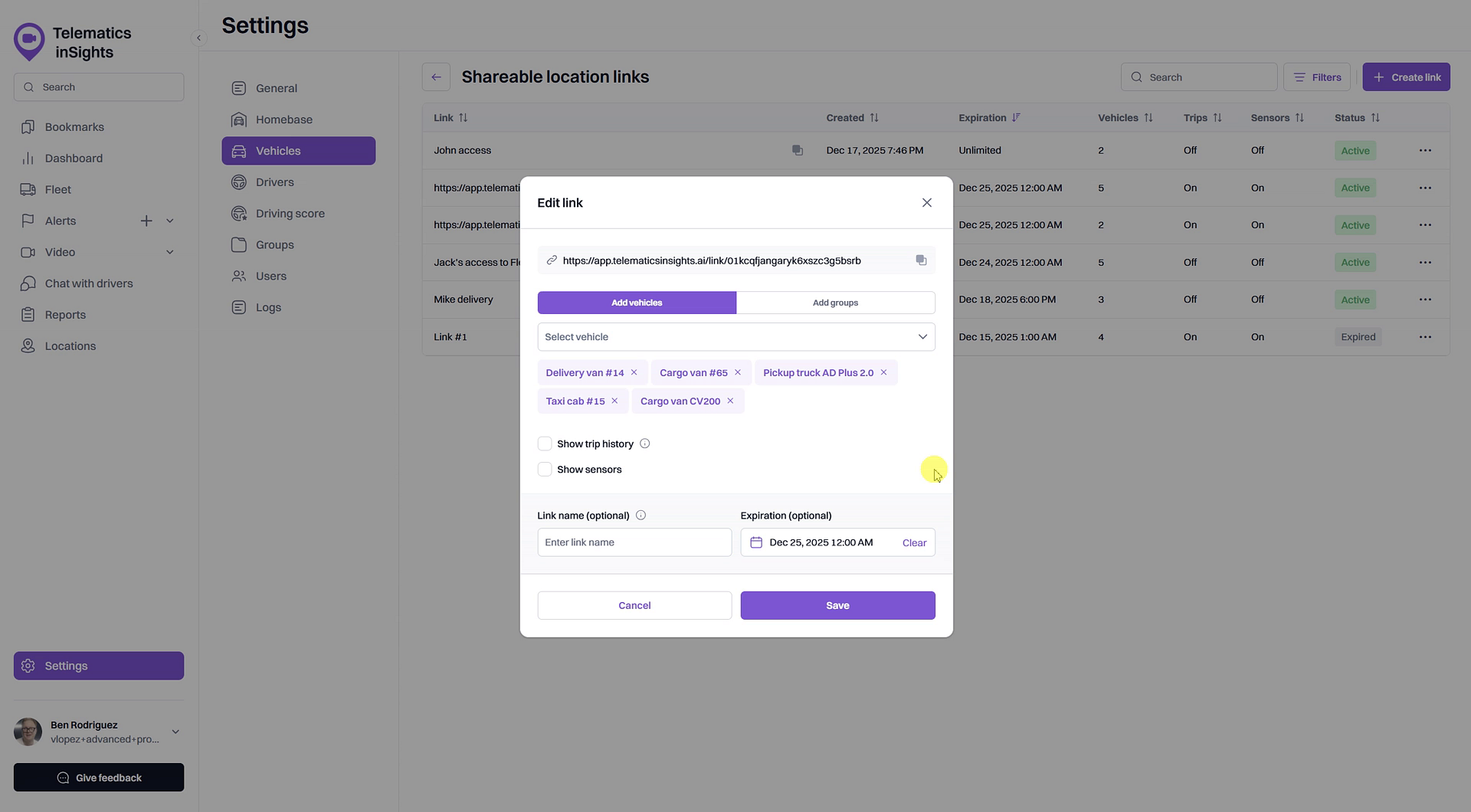
- Click Save to apply your changes. The link URL will remain the same, but the permissions will be updated immediately.
Reactivate an Expired Shareable Location Link
If a link has expired, you can easily reactivate it to grant access again.
- Go to the Shareable location links page by navigating to Settings > Vehicles.
- Find the link you wish to reactivate. It will have an Expired status badge.
- Click the Expired status badge.
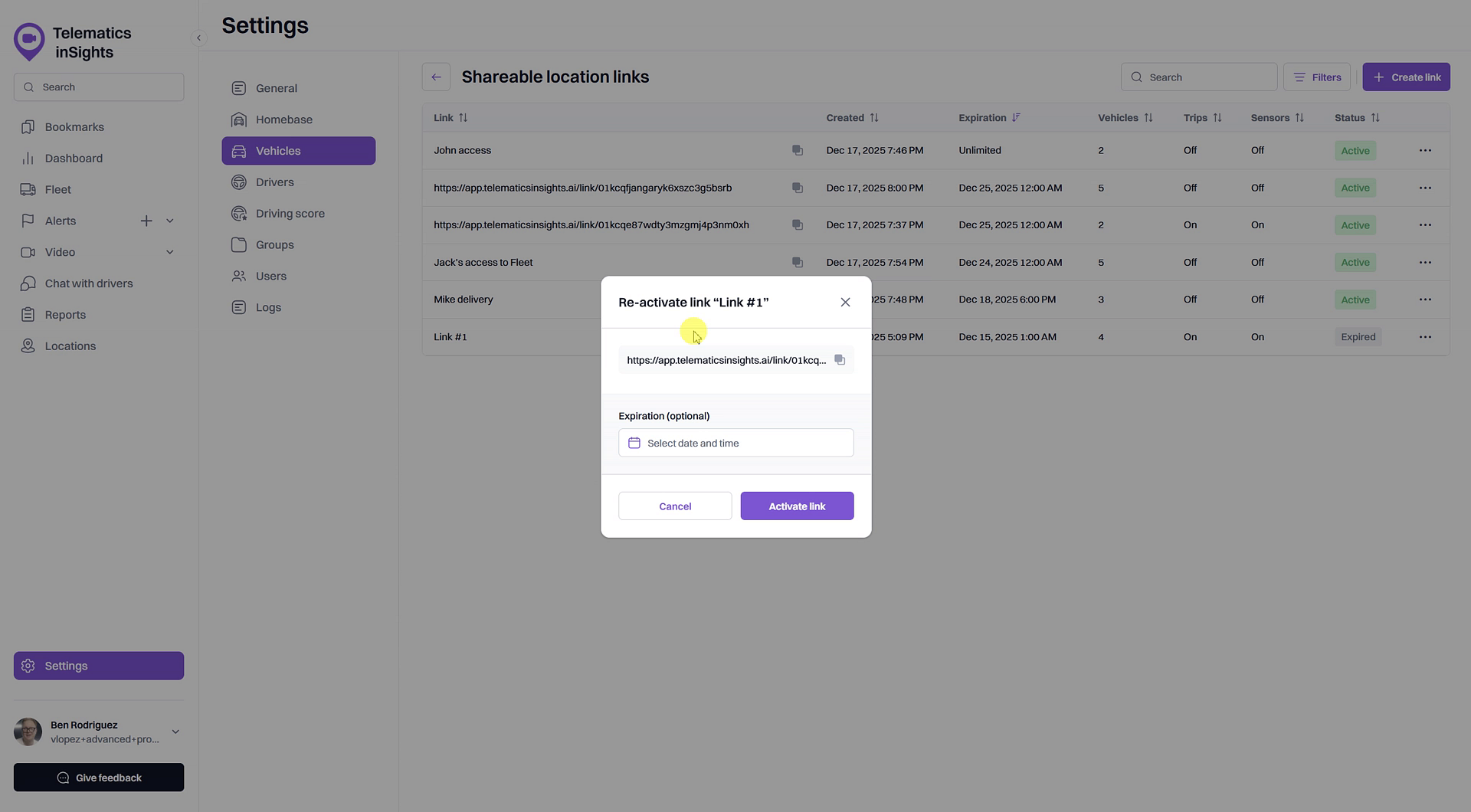
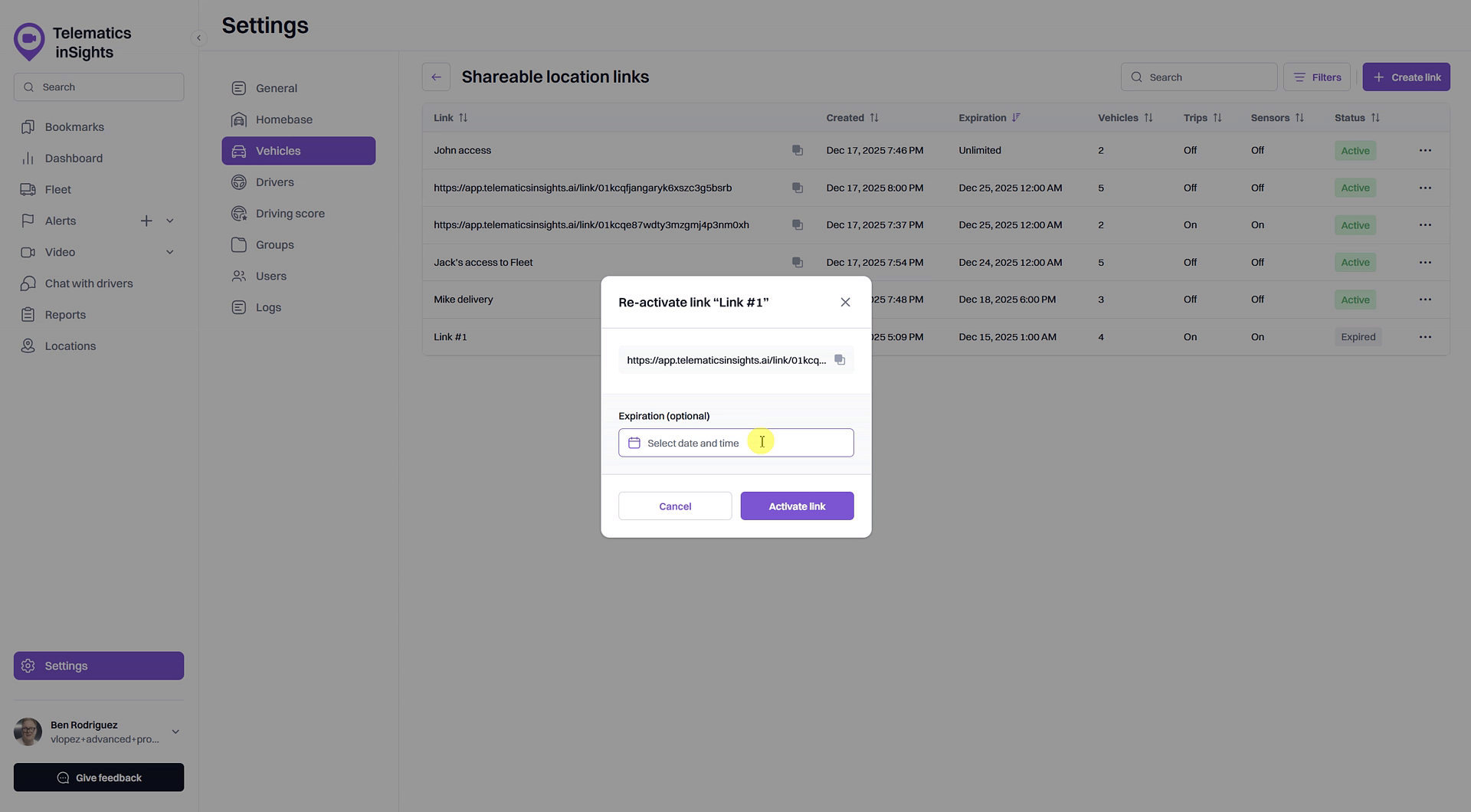
- A Re-activate Link window will appear. You can optionally set a new Expiration date and time for the link. If you leave this blank, the link will not expire.
- Click the Activate link button. The link's status will change to Active, and it can be used again.
Summary
This article explains how to manage your shareable location links after they have been created. By following these steps, you can easily modify the permissions of an active link, such as hiding trip history and sensor data, or reactivate a link that has expired. This gives you ongoing control over who can access your vehicle data and for how long.
Related
- Create a shareable link to track vehicle locations
- What a recipient sees with a shareable location link
Related Articles
What a Recipient Sees with a Shareable Location Link
What a Recipient Sees with a Shareable Location Link When you share a vehicle's location using a shareable link, the recipient gets access to a special, read-only view of your fleet map. This article explains what they will see and what information ...How to Create a Shareable Link to Track Vehicle Locations
How to Create a Shareable Link to Track Vehicle Locations This article will show you how to create a secure, shareable link that allows people outside of your organization, such as customers or partners, to track the real-time location of specific ...Asset Location Sharing
This feature in Pulse GPS allows you to share the location of an asset so that it can be viewed by a 3rd party without logging in. Review this article and video to find out more. Steps 1. When you select an asset in the list (or click on its icon on ...Intervals
Intervals Interval is a type of work related to vehicle maintenance or validity control of driver's permits and documents. Here you can create and edit service intervals, as well as assign units, trailers, or drivers to them. If a unit, trailer, or ...Services Editing
Services Editing There are two ways to edit services: quick data and/or status change; properties editing. Quick data and/or status change When you pause on the line with the service name, the icon appears. Click on the icon to open the menu which ...