How to Find a Vehicle's Trip History for a Specific Date Range
How to Find a Vehicle's Trip History for a Specific Date Range
This article shows you how to find and display a vehicle's travel history for a custom date range. This feature is useful for reviewing past routes, verifying deliveries, or investigating specific events within a particular timeframe.
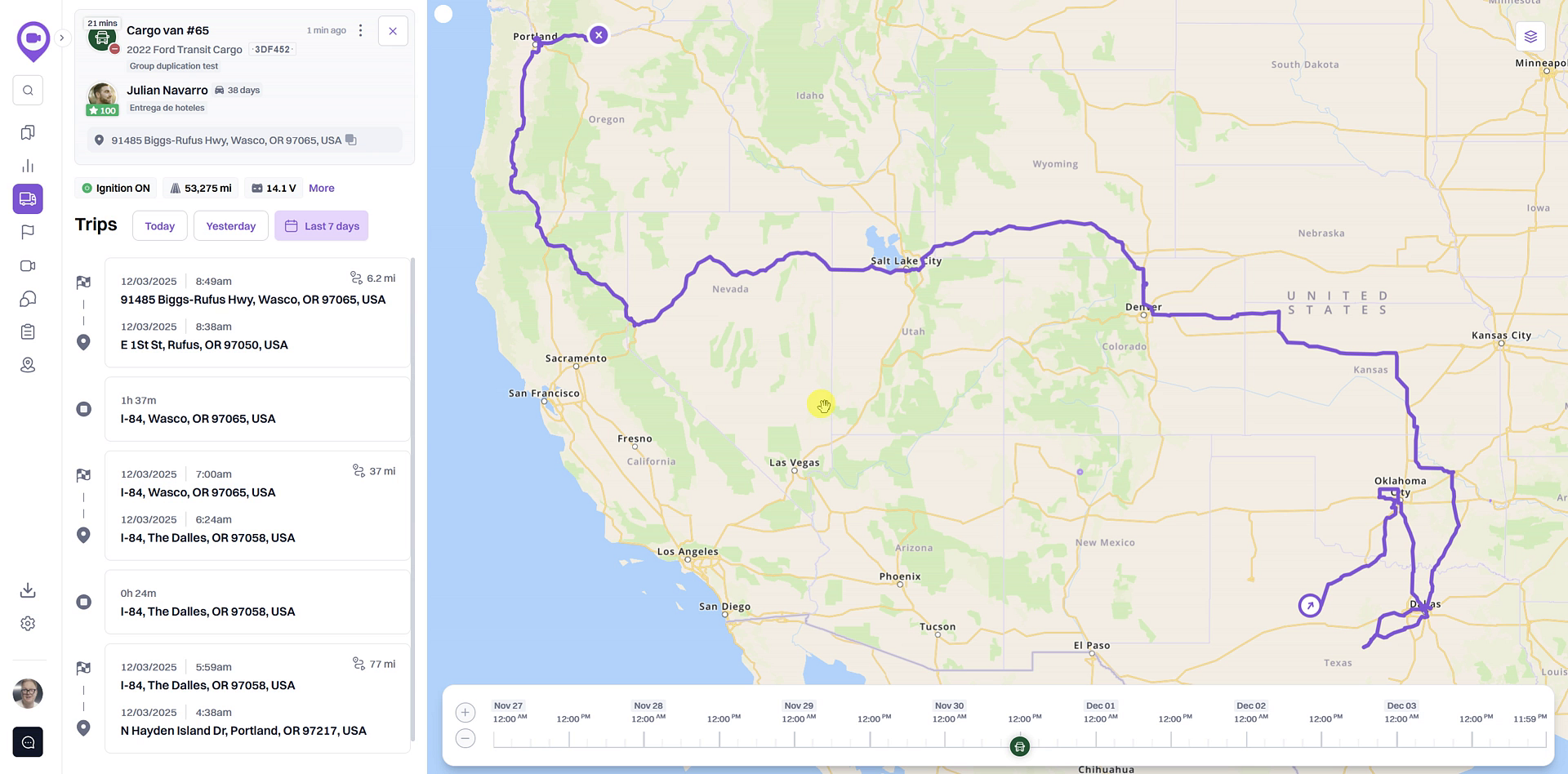
- From the Fleet map, locate your vehicle in the list on the left and click the View details icon.
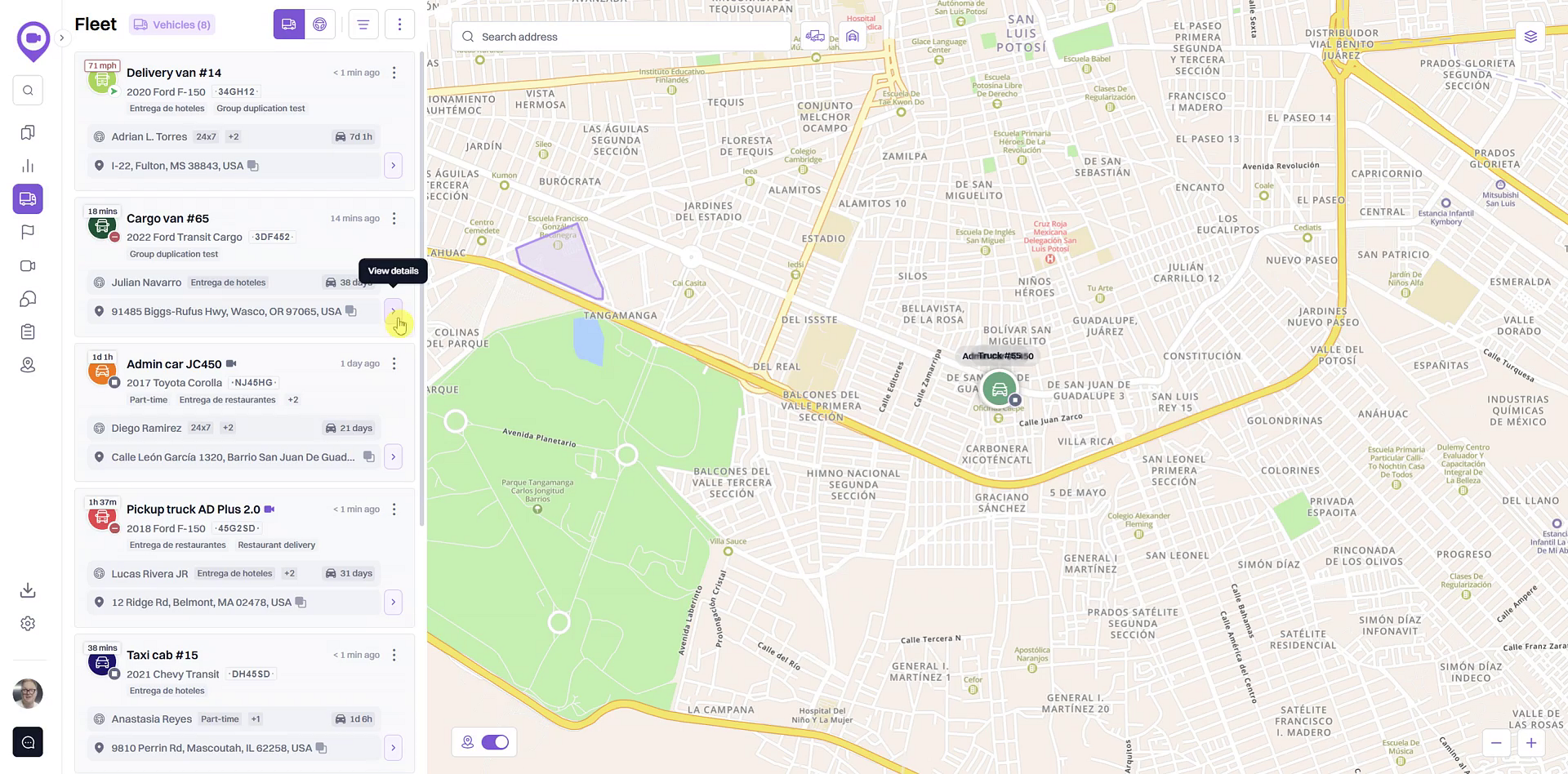
- In the detail panel, click the Custom date button.
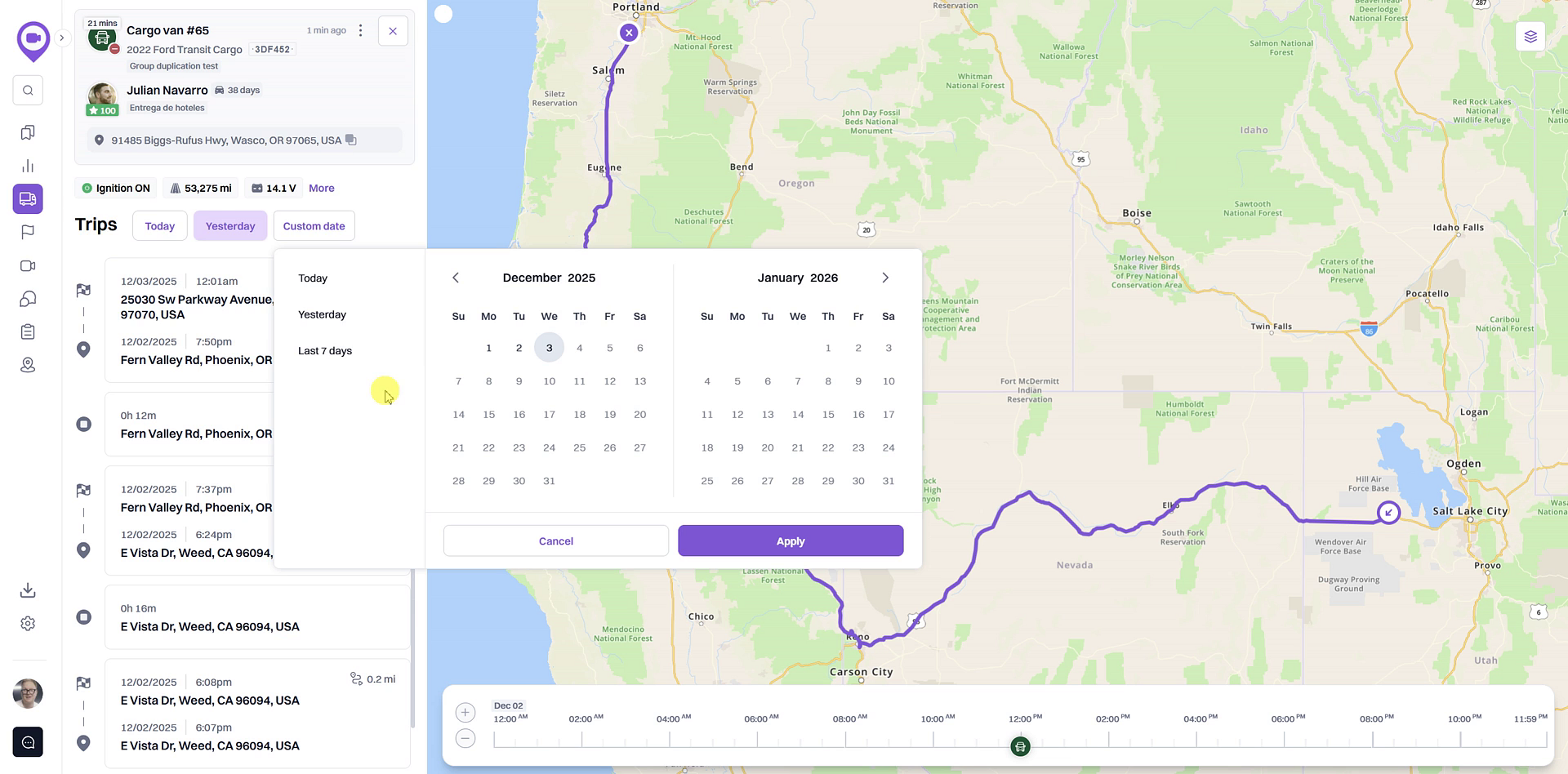
- In the calendar pop-up, select a start and end date for your desired range. You can also choose a preset, such as Last 7 days.
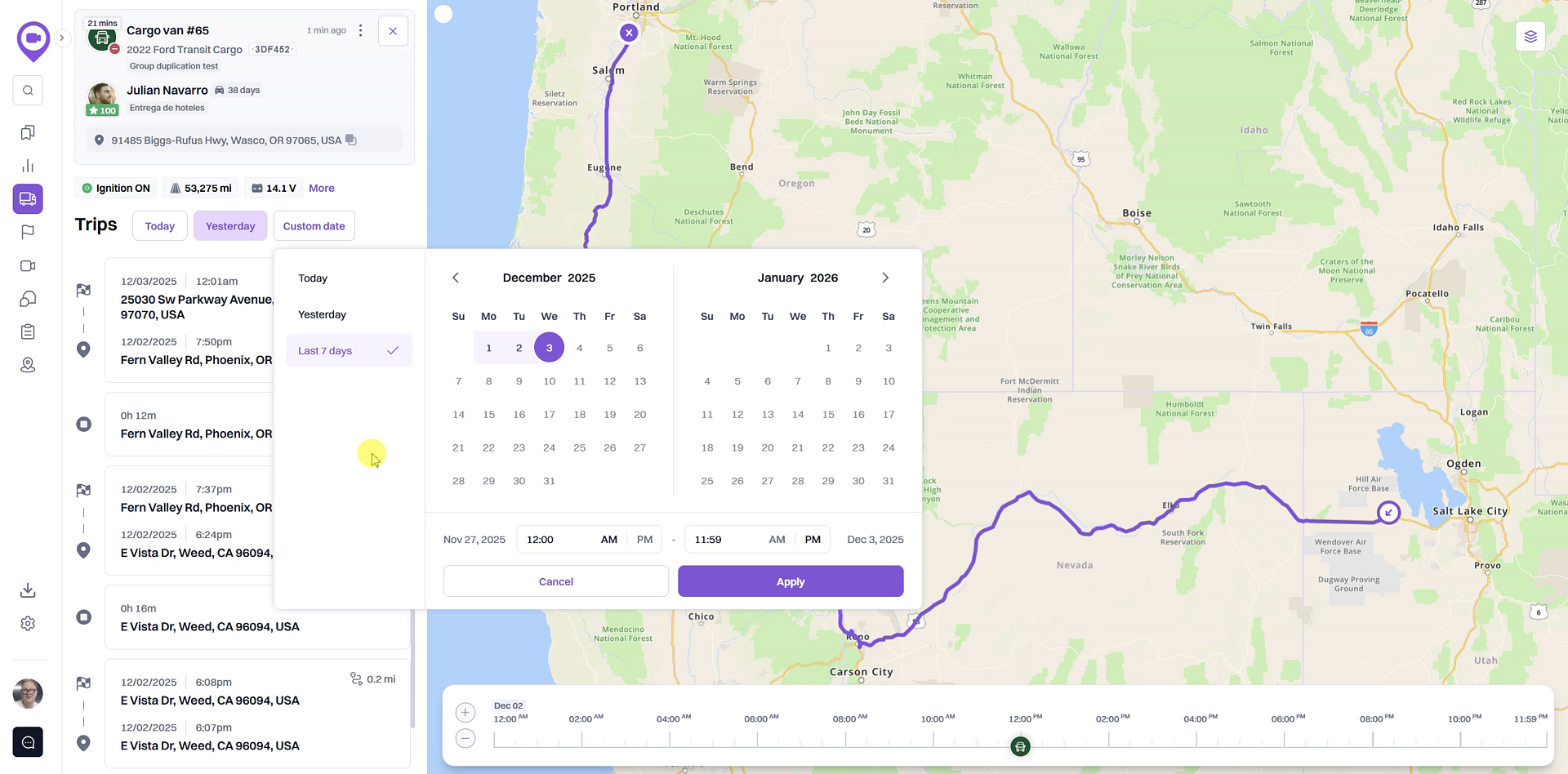
- Click Apply to view the trip history for the selected period.
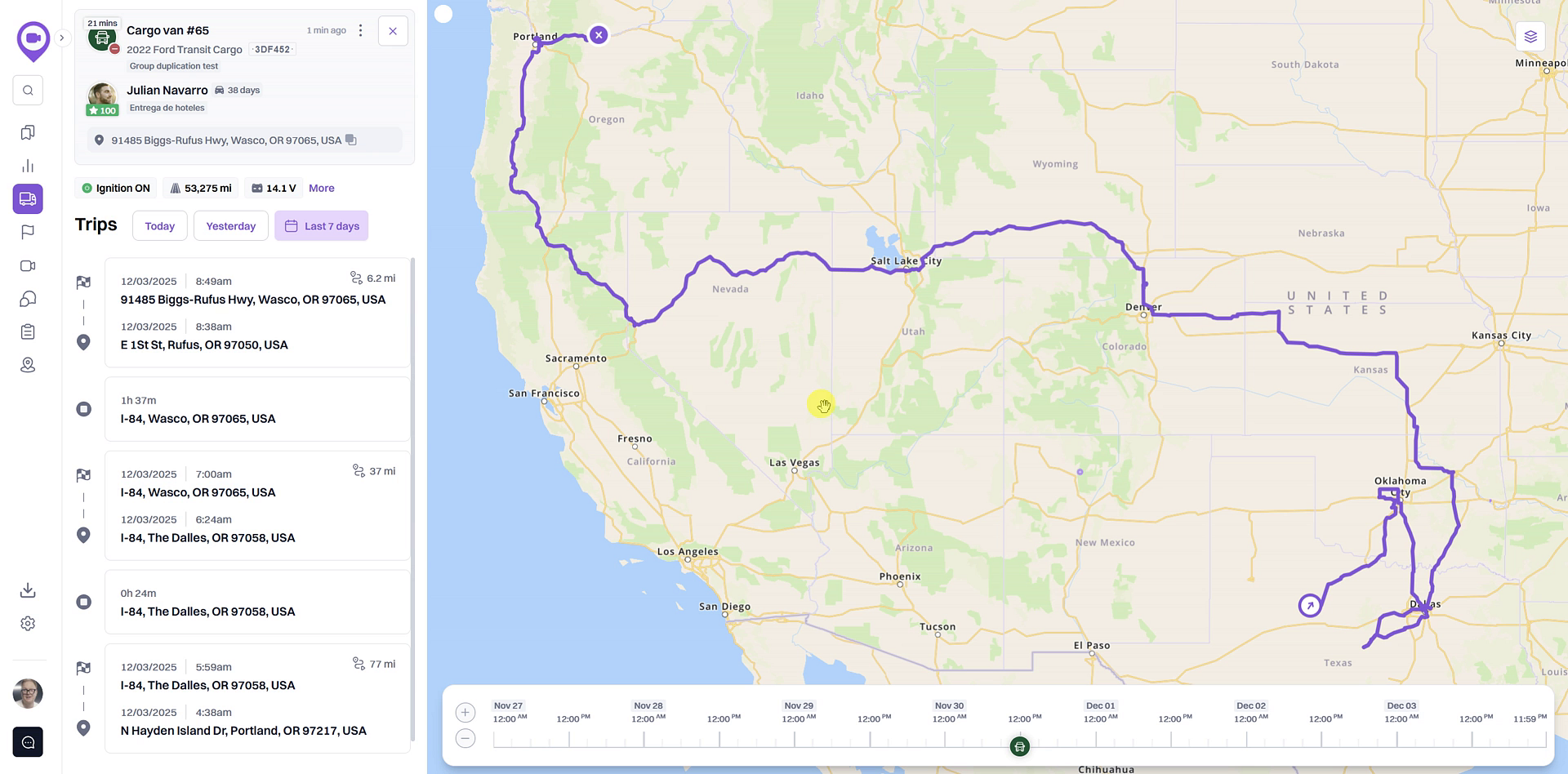
- The map will update to show the vehicle's complete route, and the list will display all trips and stops from that timeframe.
Summary
This article explains how to access and view a vehicle's trip history for a specific period. By selecting a custom date range, you can analyze past movements, which is essential for auditing, performance reviews, and incident investigation. The system displays the full route on the map and lists all individual trips and stops for the chosen timeframe.
Related
Related Articles
How to View a Vehicle's Trip History
How to View a Vehicle's Trip History This guide shows you how to access and review a vehicle's historical trip data. Following these steps will allow you to see where a vehicle has traveled on the map for specific dates, which is useful for verifying ...Find a specific vehicle on the map
Find a specific vehicle on the map This article explains how to quickly locate any vehicle in your fleet on the live map. Following this simple step allows you to immediately see a vehicle's current position without needing to search or pan manually. ...Replay a vehicle's past trips on the map
Replay a vehicle's past trips on the map This article explains how to use the trip replay feature to visualize a vehicle's past movements on the map. Following these steps will allow you to see a vehicle's exact location and travel path for any ...Vehicle Monitoring
Click on Live View, and select Vehicle Monitoring and a popup window will appear which will display all camera units under your account: If you hover your curser over a unit, three icons appear to the right of the unit as seen below: Key Targeting; ...Overview of the Fleet Map and Vehicle List
Overview of the Fleet Map and Vehicle List The Fleet view is your central dashboard for real-time monitoring of your vehicles. It combines an interactive map with a comprehensive list, allowing you to see the current location and status of your ...