How to View a Vehicle's Trip History
How to View a Vehicle's Trip History
This guide shows you how to access and review a vehicle's historical trip data. Following these steps will allow you to see where a vehicle has traveled on the map for specific dates, which is useful for verifying routes and analyzing past activity.
- From the Fleet map view, locate the vehicle you want to review in the list on the left.
- Click the arrow icon on the right side of the vehicle's card to open its detailed view.
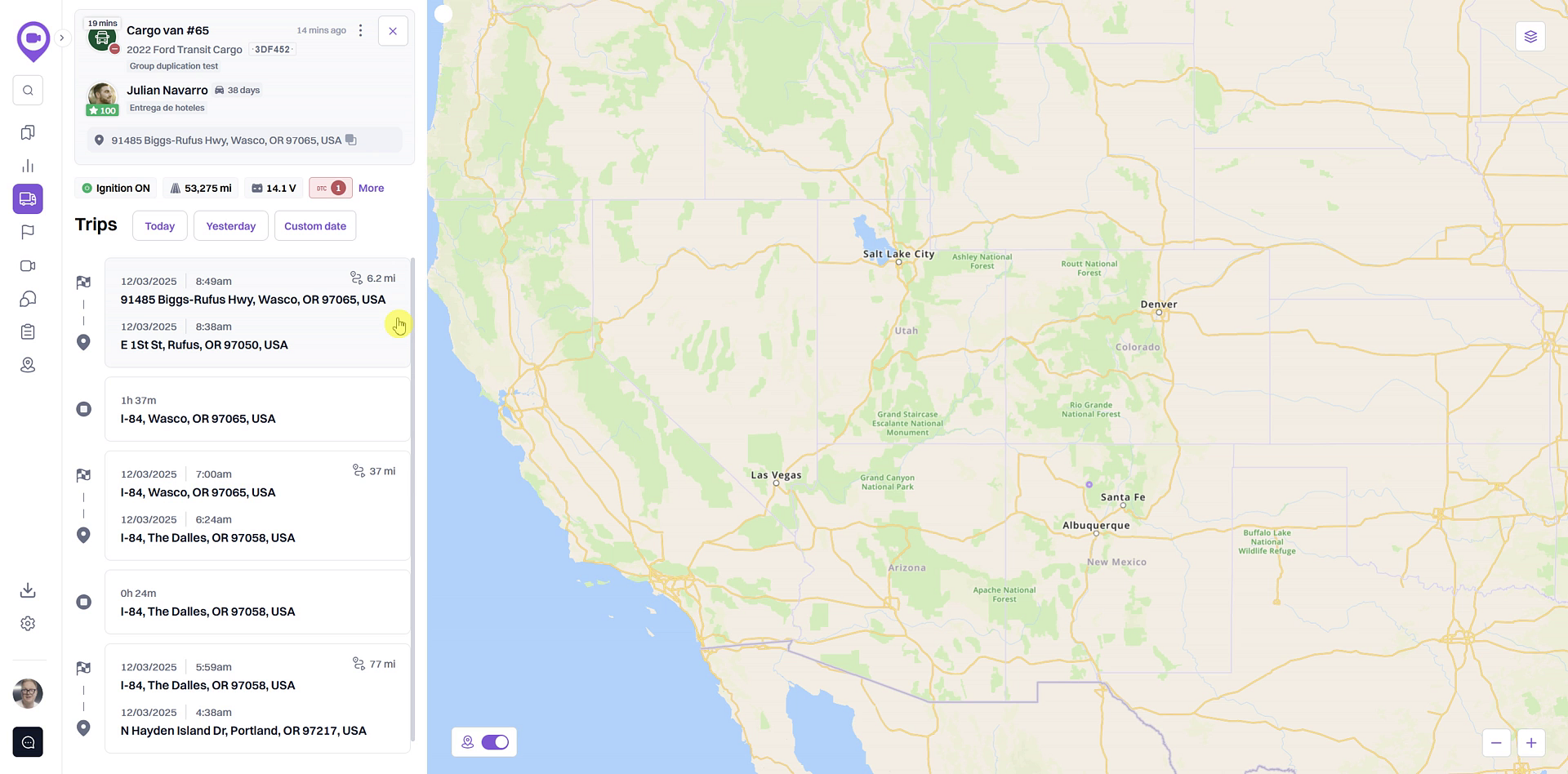
- The detailed view opens, showing the vehicle's recent trips and stops. The map will center on the vehicle's current location.
- To see the trip history, use the date filter buttons above the trip list. By default, it shows Today's trips.
- Click Yesterday to view the previous day's activity, or click Custom date to select a specific time frame.
- When using Custom date, select a start and end date from the calendar. You can view a history of up to seven days at a time.
- Click Apply to update the map.
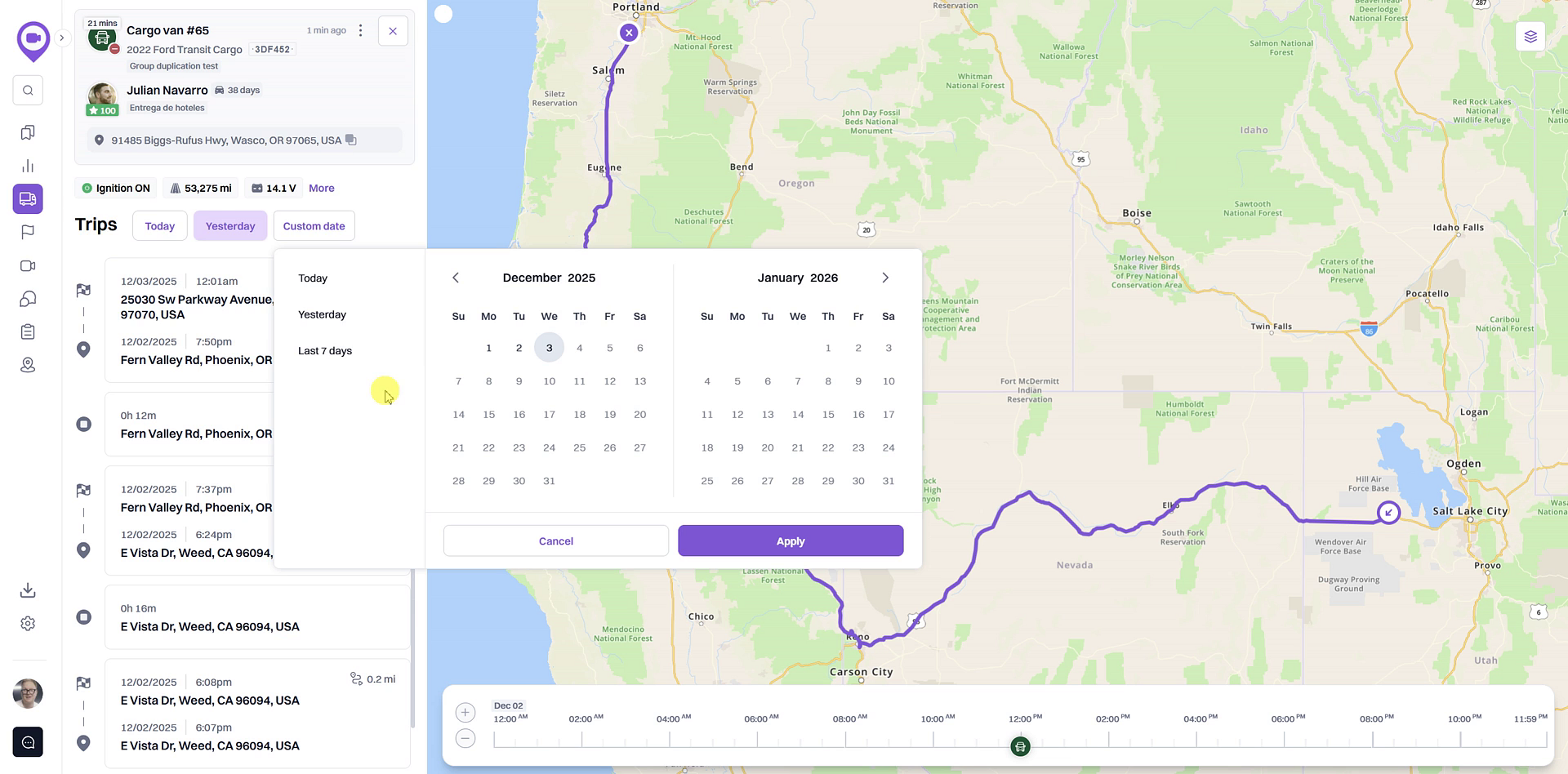
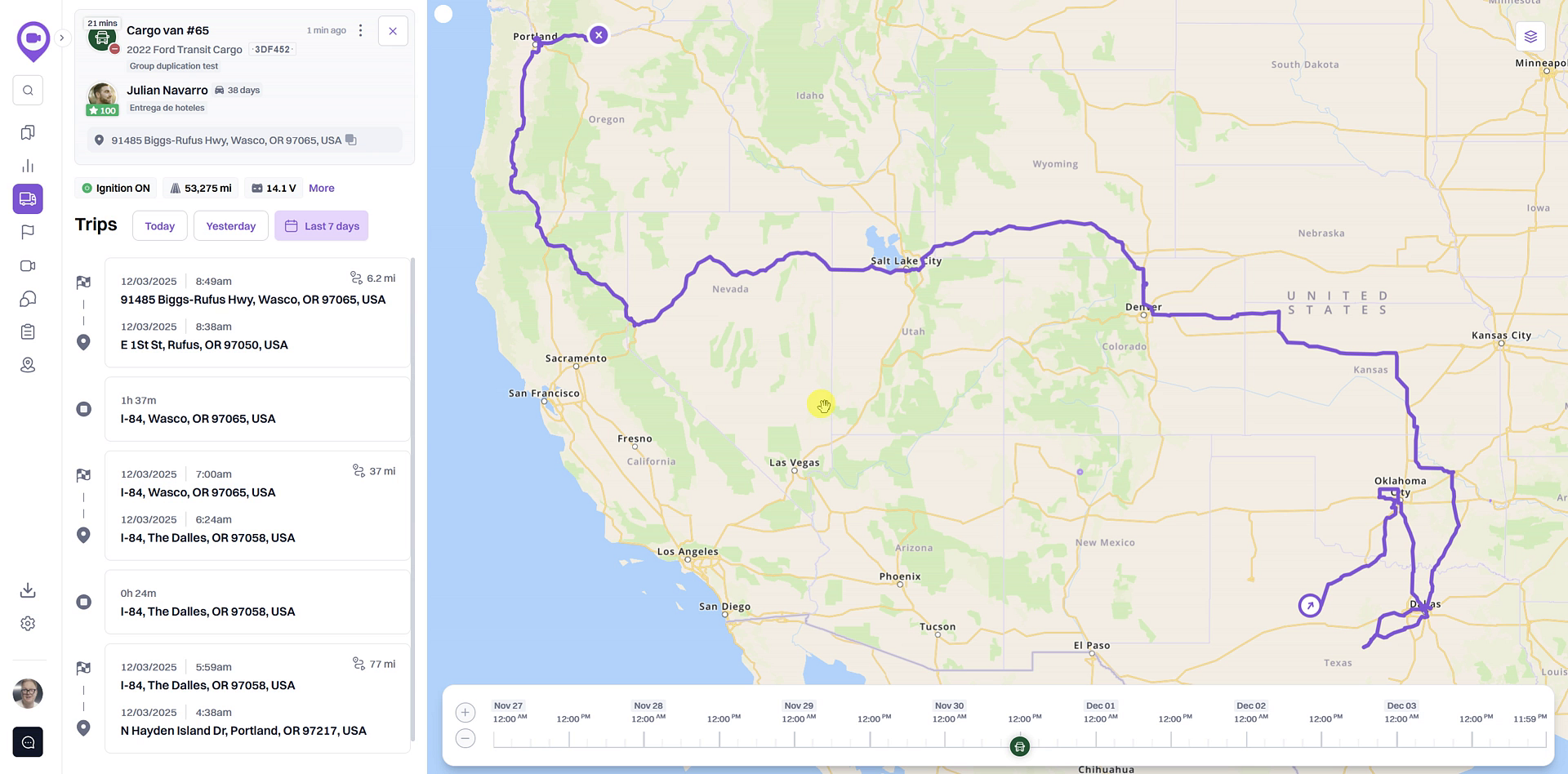
- The map will display the vehicle's full route for the selected period, and the trip list will update accordingly.
Summary
This article explains how to access a vehicle's trip history from the Fleet map. By opening the detailed view for a specific vehicle, you can see its routes for today, yesterday, or a custom date range of up to seven days. This feature is essential for reviewing past driver activity and verifying route compliance.
Related
- Replay a vehicle's past trips on the map
- Find trip history for a specific date range
- View detailed vehicle information
Related Articles
How to Find a Vehicle's Trip History for a Specific Date Range
How to Find a Vehicle's Trip History for a Specific Date Range This article shows you how to find and display a vehicle's travel history for a custom date range. This feature is useful for reviewing past routes, verifying deliveries, or investigating ...How to View Detailed Vehicle Information
How to View Detailed Vehicle Information This article shows you how to access the detailed information page for any vehicle in your fleet. This view provides a focused look at a vehicle's recent trips, sensor data, and historical routes on the map, ...Vehicle Monitoring
Click on Live View, and select Vehicle Monitoring and a popup window will appear which will display all camera units under your account: If you hover your curser over a unit, three icons appear to the right of the unit as seen below: Key Targeting; ...Vehicle Monitoring
How to Play Back Historical Video Footage for a Trip
How to Play Back Historical Video Footage for a Trip Reviewing past trips is essential for understanding on-road events. This guide shows you how to play back historical video footage from your vehicle's dash cam for any completed trip. You will need ...