How to Search for Vehicles in a Specific Group
How to Search for Vehicles in a Specific Group
This article shows you how to filter your vehicle list to display only the vehicles belonging to a specific group. This feature is useful for organizing large fleets, allowing you to focus on vehicles assigned to a particular team, region, or function. To use this feature, your vehicles must first be assigned to groups.
- From the Fleet Map, click the Filter and Sort icon located at the top of the vehicle list.
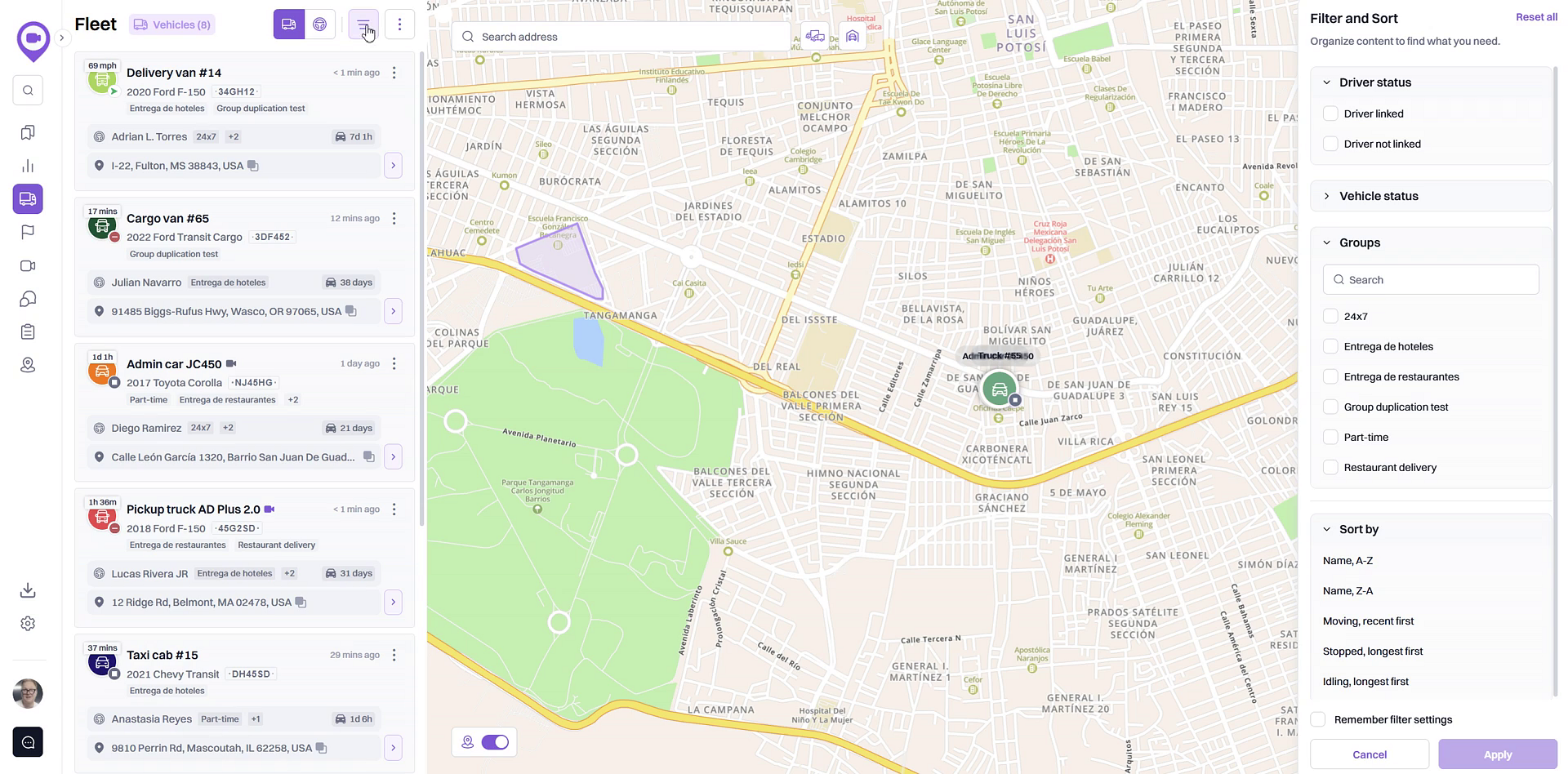
- In the Filter and Sort panel that appears, find the Groups section.
- Select the checkbox next to the name of the group you want to view. You can select more than one group at a time.
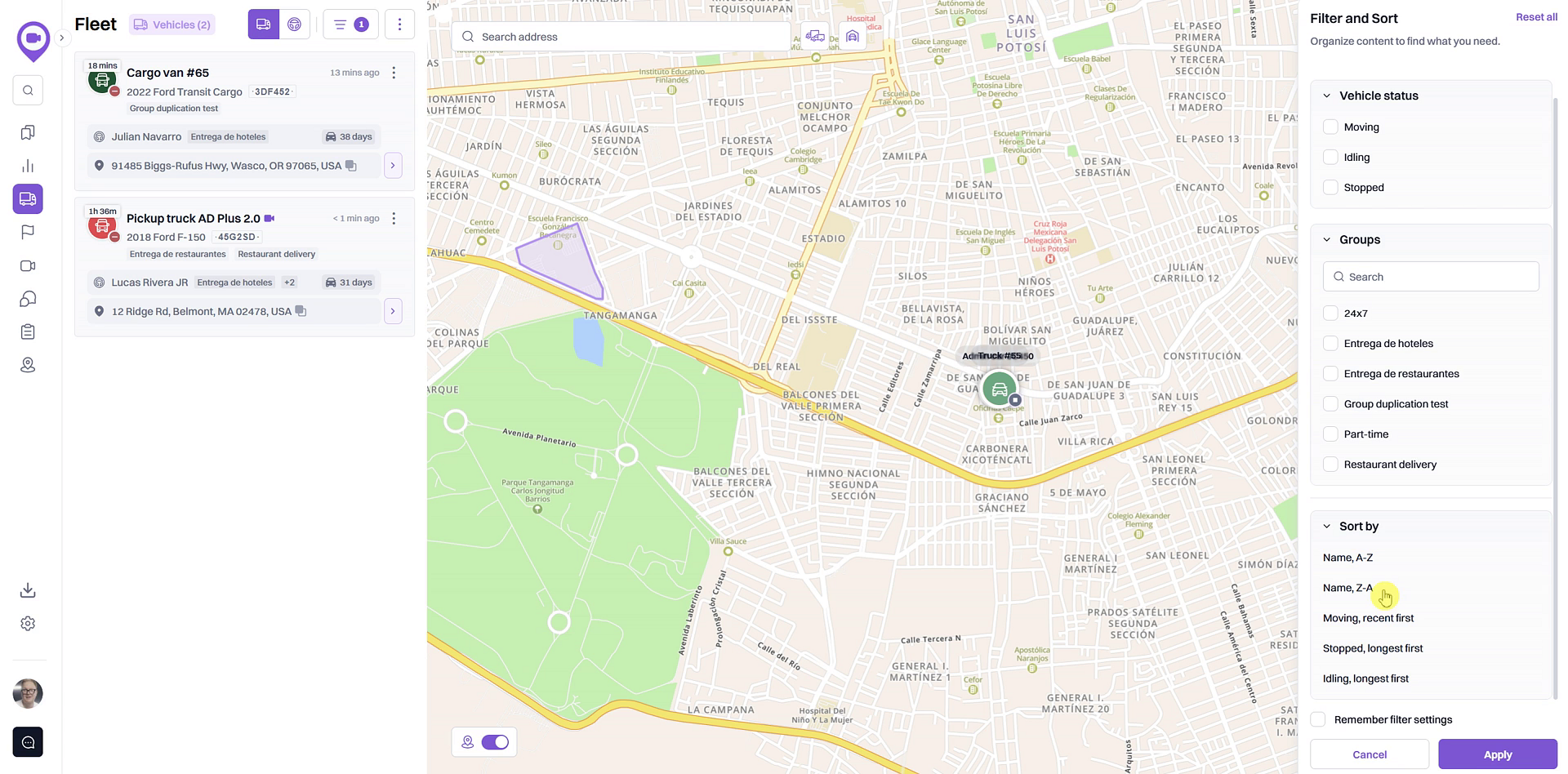
- Click Apply to update your vehicle list. The list and map will now only show vehicles from the group(s) you selected.
Tips
If you cannot find a group in the list, make sure the group has been created and that at least one vehicle has been assigned to it.
Summary
Filtering your fleet by specific groups helps streamline fleet management by allowing you to focus on relevant segments of your operations. This functionality is ideal for organizing vehicles by team, location, or job type, making it easier to monitor performance and manage assignments for targeted sets of vehicles.
Related
- Search for vehicles by their current status
- Search for vehicles by driver assignment
- Sort the vehicle list
Related Articles
Search for Vehicles by Driver Assignment
Search for Vehicles by Driver Assignment This guide shows you how to filter your vehicle list based on whether a driver is currently assigned. Following these steps will help you quickly identify vehicles that are in use or available for new ...How to Search for Vehicles by Their Current Status
How to Search for Vehicles by Their Current Status This guide shows you how to filter your vehicle list to find vehicles based on their real-time status. By learning how to use these filters, you can quickly see which vehicles are currently moving, ...Area of Search Results
The area of search results occupies most of the work area. Here you can see a table with the search results of the section selected in the navigation and search panel. The area can contain up to five tabs, that is, the results of five search requests ...Navigation and Search Panel
The navigation and search panel is located on the left side of the window. It contains a list of sections which can be shown in the area of search results. Depending on the type of account and enabled services, the following sections may be ...Groups of Geofences
Groups of Geofences To work with geofence groups, you should have the same access rights as for working with geofences. Geofence groups are used to combine geofences according to certain criteria. In addition, you can use groups as a filter in some ...