Search for Vehicles by Driver Assignment
Search for Vehicles by Driver Assignment
This guide shows you how to filter your vehicle list based on whether a driver is currently assigned. Following these steps will help you quickly identify vehicles that are in use or available for new assignments. You will need access to the Fleet Map.
- From the Fleet map, locate the list of vehicles on the left side of your screen.
- Click the Filter and sort icon at the top of the vehicle list.
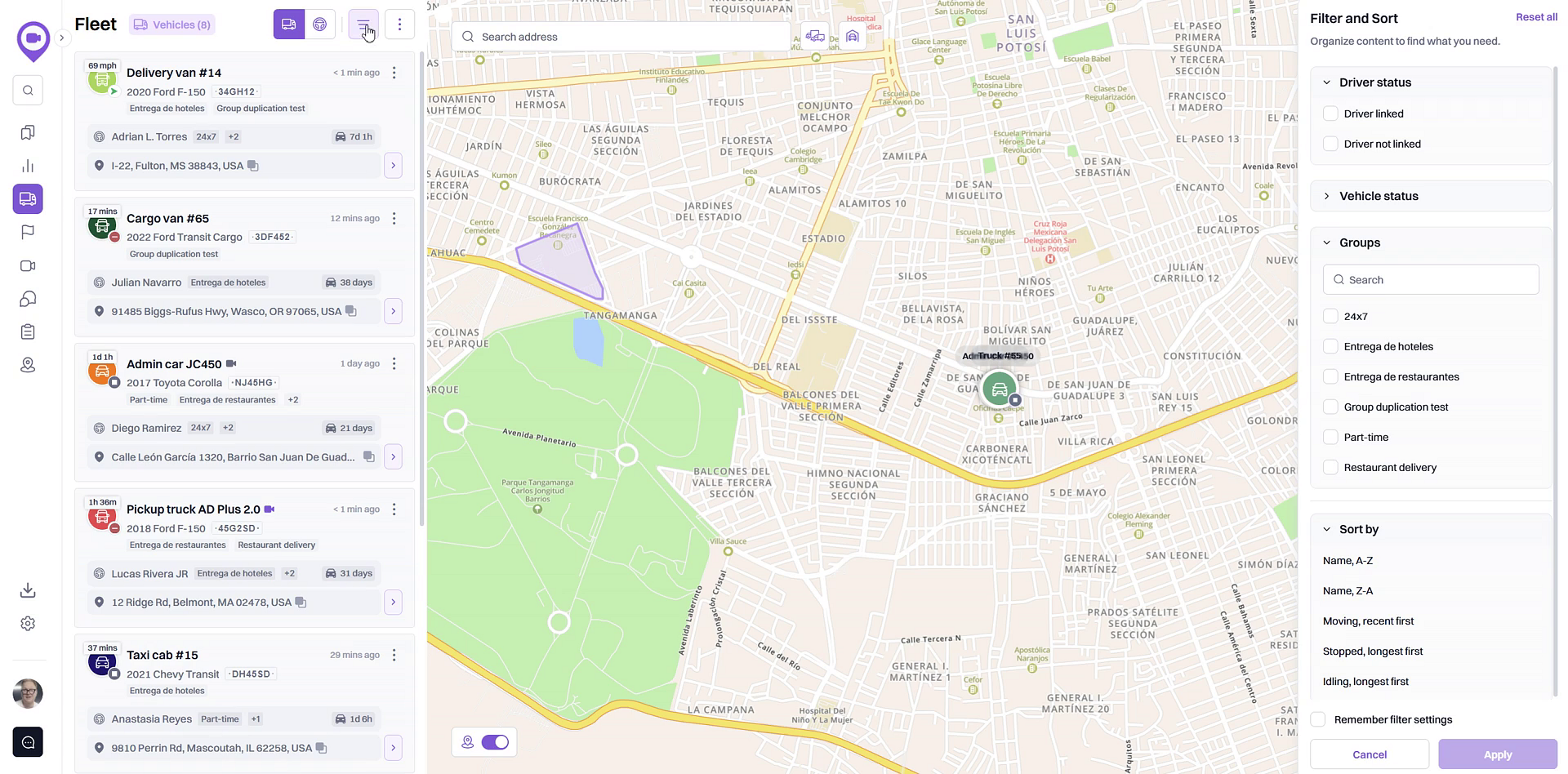
- In the panel that appears, find the Driver status section.
- Select the checkbox for the view you want to see:
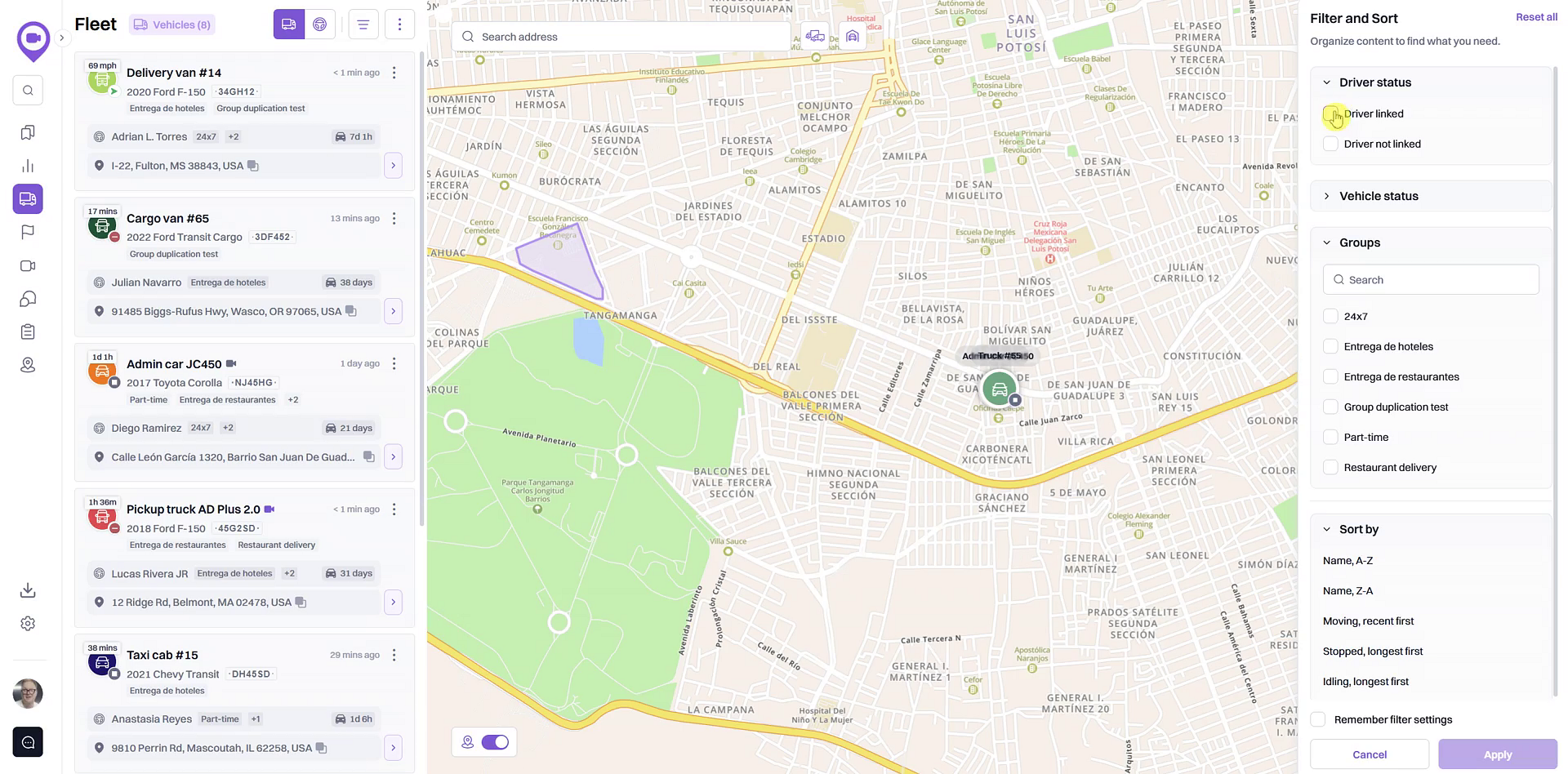
- Click the Apply button at the bottom of the panel. The vehicle list will now show only the vehicles that match your selection.
Summary
Filtering your fleet by driver assignment status is a powerful way to organize your vehicles. This function allows you to instantly see which vehicles are currently in use by a driver and which are available for assignment, helping you streamline dispatching and improve operational efficiency.
Related
- Search for vehicles by their current status
- Search for vehicles within a specific group
- Sort the vehicle list
Related Articles
How to Search for Vehicles in a Specific Group
How to Search for Vehicles in a Specific Group This article shows you how to filter your vehicle list to display only the vehicles belonging to a specific group. This feature is useful for organizing large fleets, allowing you to focus on vehicles ...How to Switch Between Vehicle and Driver Views
How to Switch Between Vehicle and Driver Views This guide shows you how to switch between the vehicle and driver views on the Fleet map. Toggling between these views allows you to organize the list by either your physical assets or your personnel, ...Creating a Driver
Creating a Driver In order for the user to be able to create drivers: the Drivers service should be enabled in the properties of the account in the resource of which a driver should be created; the user should have the Create, edit, and delete ...Assigning and Separating Drivers
Assigning and Separating Drivers To assign and separate drivers, you should have the following access rights: Create, edit and delete drivers. To the resource that contains the drivers. View object and its basic properties. To the units that should ...Navigation and Search Panel
The navigation and search panel is located on the left side of the window. It contains a list of sections which can be shown in the area of search results. Depending on the type of account and enabled services, the following sections may be ...