How to View Detailed Vehicle Information
How to View Detailed Vehicle Information
This article shows you how to access the detailed information page for any vehicle in your fleet. This view provides a focused look at a vehicle's recent trips, sensor data, and historical routes on the map, allowing for in-depth analysis of its activity.
- From the main fleet map, locate the vehicle you want to examine in the vehicle list on the left.
- On the vehicle's card, click the View Details button (right-pointing arrow).
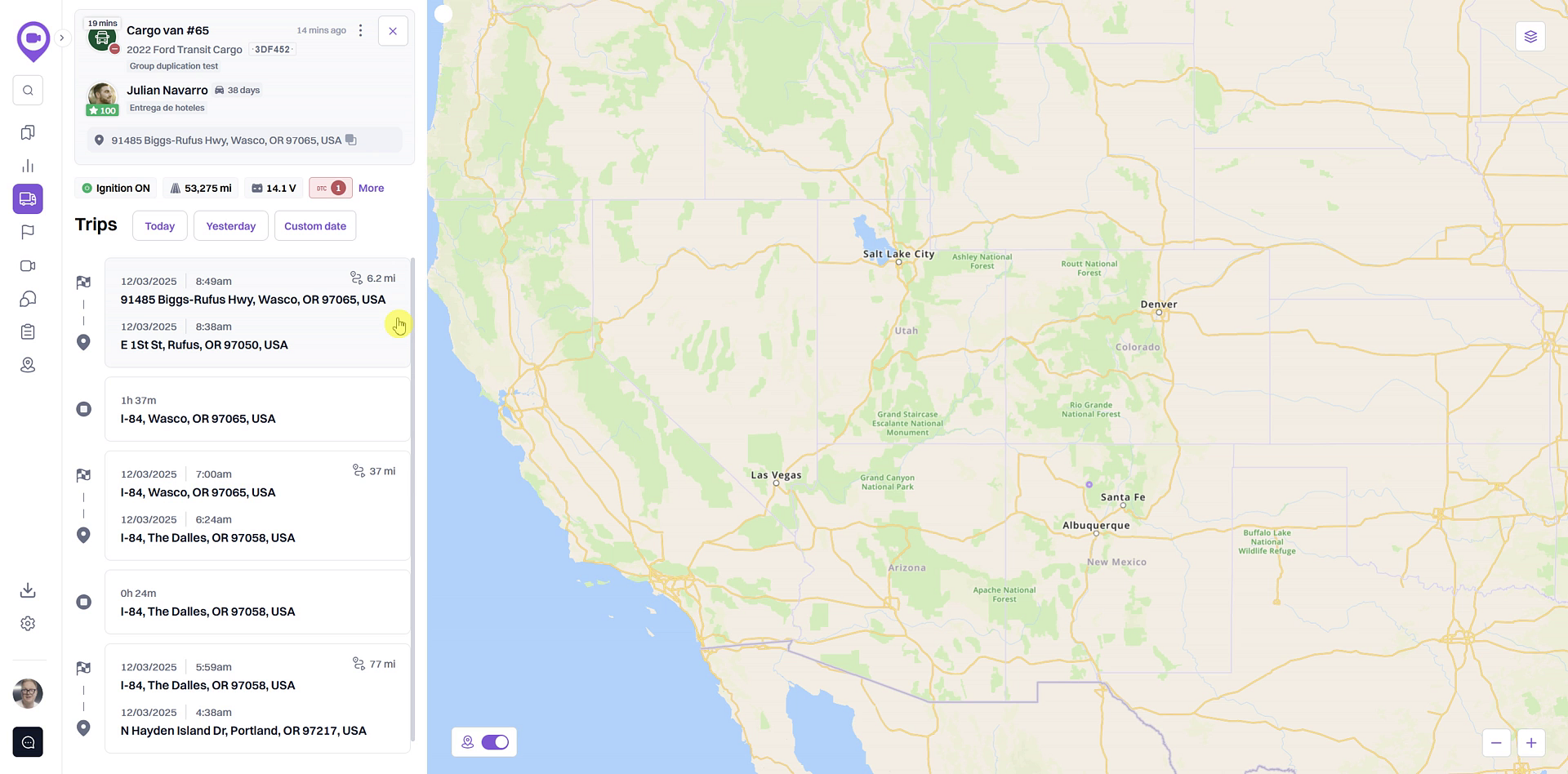
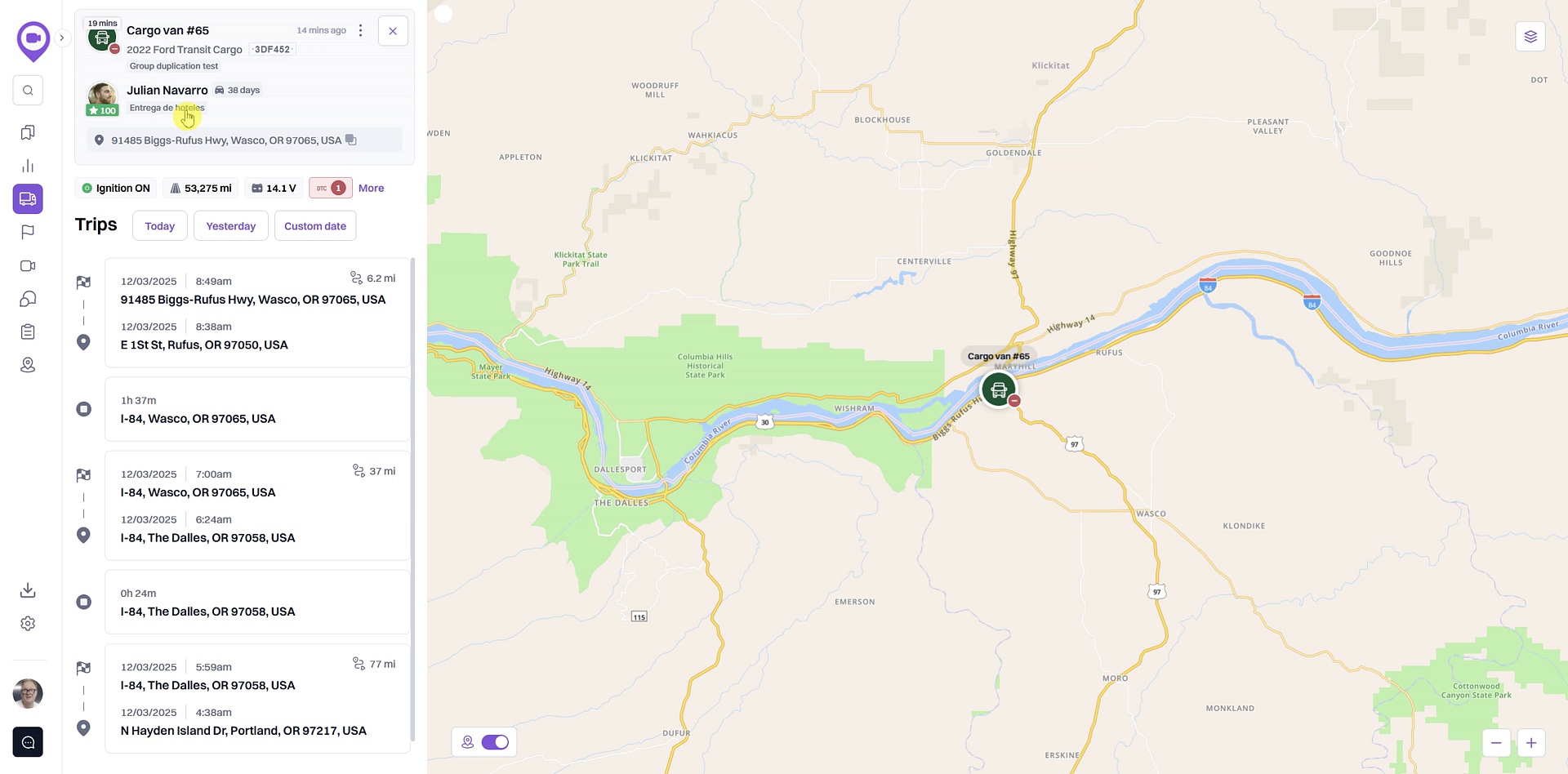
- You will be taken to the detailed information screen. Here, you can see the vehicle's recent trips, sensor readings, and its current location centered on the map.
Tips
To quickly find a specific vehicle in a long list, use the Filter and Sort options at the top of the vehicle panel. You can filter by status (e.g., Idling, Moving) or sort by name to narrow down your search.
Summary
The detailed vehicle information page offers a comprehensive overview of a single vehicle's performance and history. By accessing this view, you can analyze specific trips, review critical engine data and sensor readings, and replay historical routes on the map to investigate past events and monitor operational efficiency.
Related
- Access engine data and sensor readings
- View a vehicle's trip history
- Switch between vehicle and driver views
Related Articles
How to View a Vehicle's Trip History
How to View a Vehicle's Trip History This guide shows you how to access and review a vehicle's historical trip data. Following these steps will allow you to see where a vehicle has traveled on the map for specific dates, which is useful for verifying ...Vehicle Monitoring
Click on Live View, and select Vehicle Monitoring and a popup window will appear which will display all camera units under your account: If you hover your curser over a unit, three icons appear to the right of the unit as seen below: Key Targeting; ...Find a specific vehicle on the map
Find a specific vehicle on the map This article explains how to quickly locate any vehicle in your fleet on the live map. Following this simple step allows you to immediately see a vehicle's current position without needing to search or pan manually. ...How to Switch Between Vehicle and Driver Views
How to Switch Between Vehicle and Driver Views This guide shows you how to switch between the vehicle and driver views on the Fleet map. Toggling between these views allows you to organize the list by either your physical assets or your personnel, ...Overview of the Fleet Map and Vehicle List
Overview of the Fleet Map and Vehicle List The Fleet view is your central dashboard for real-time monitoring of your vehicles. It combines an interactive map with a comprehensive list, allowing you to see the current location and status of your ...