How to Create and Save a Video Clip from a Trip Replay
How to Create and Save a Video Clip from a Trip Replay
This guide shows you how to create and save short video clips from a full trip replay. This is useful for isolating and storing important footage for incident review, driver coaching, or record-keeping. To begin, you must first be playing back historical footage for a trip.
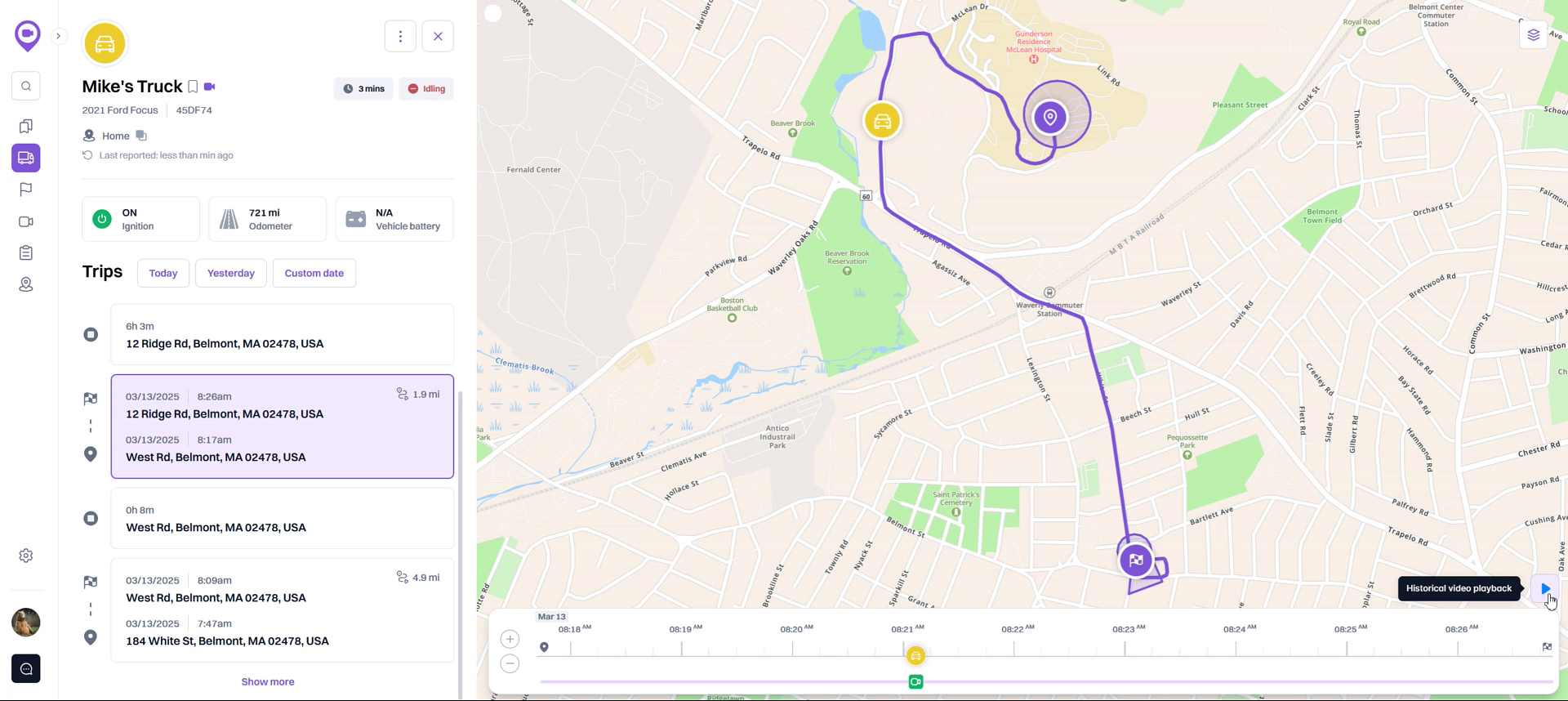
- From the trip replay screen, locate the point in time you want to review on the timeline at the bottom of the map.
- Click the Historical video playback icon to enter playback mode.
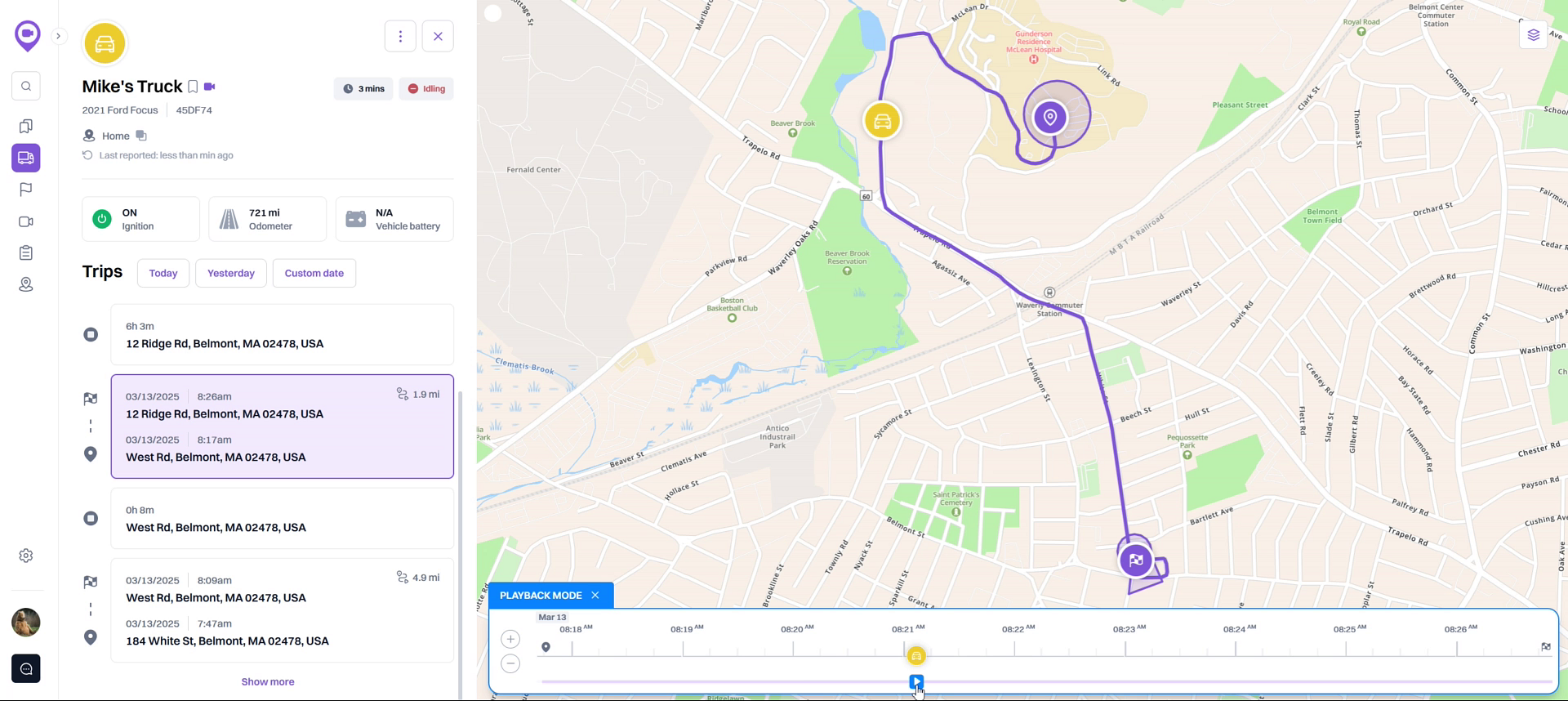
- Click the blue playback button that appears on the timeline.
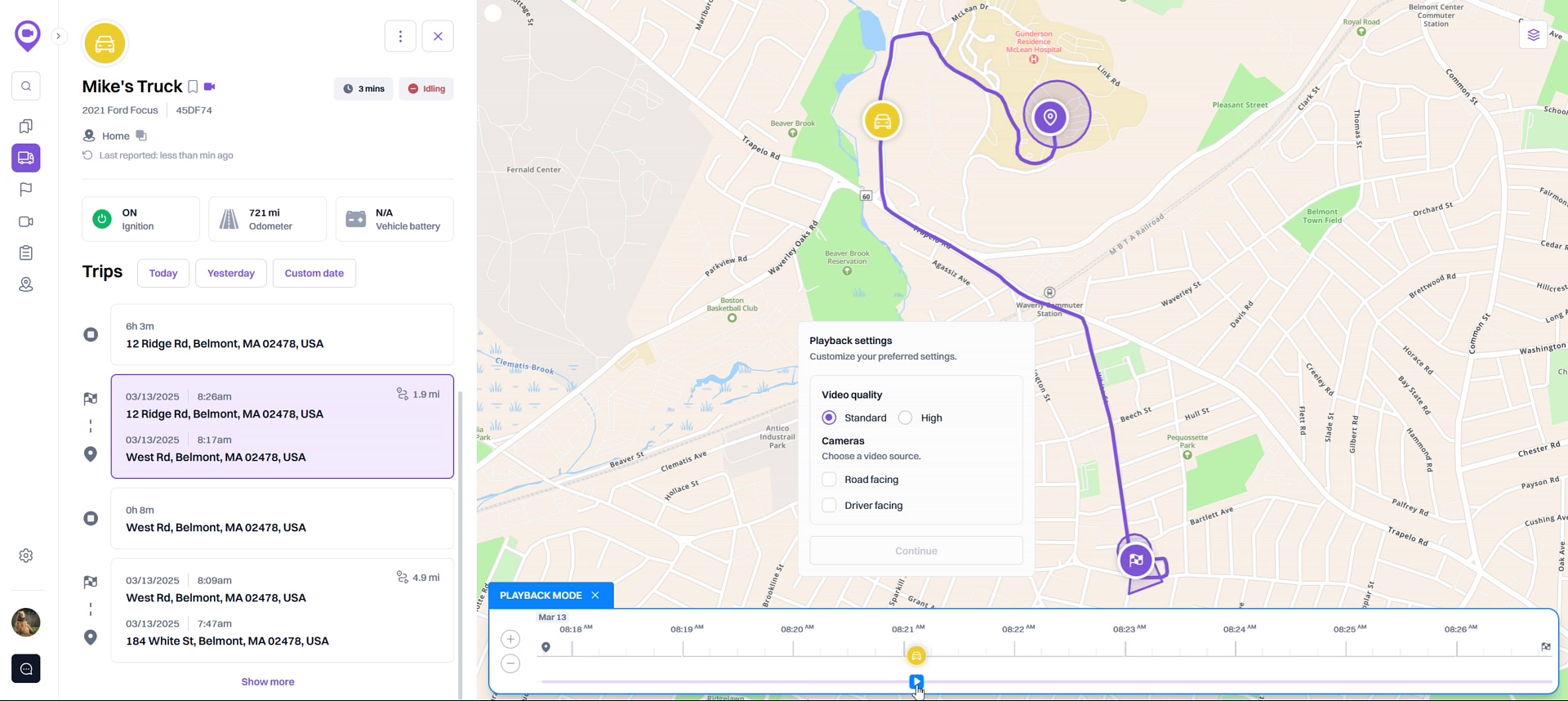
- In the Playback settings dialog, select your desired Video quality and which Cameras you want to view. Click Continue.
- The video player will open and begin streaming the footage. When you see an event you want to save, click the Clip video button.
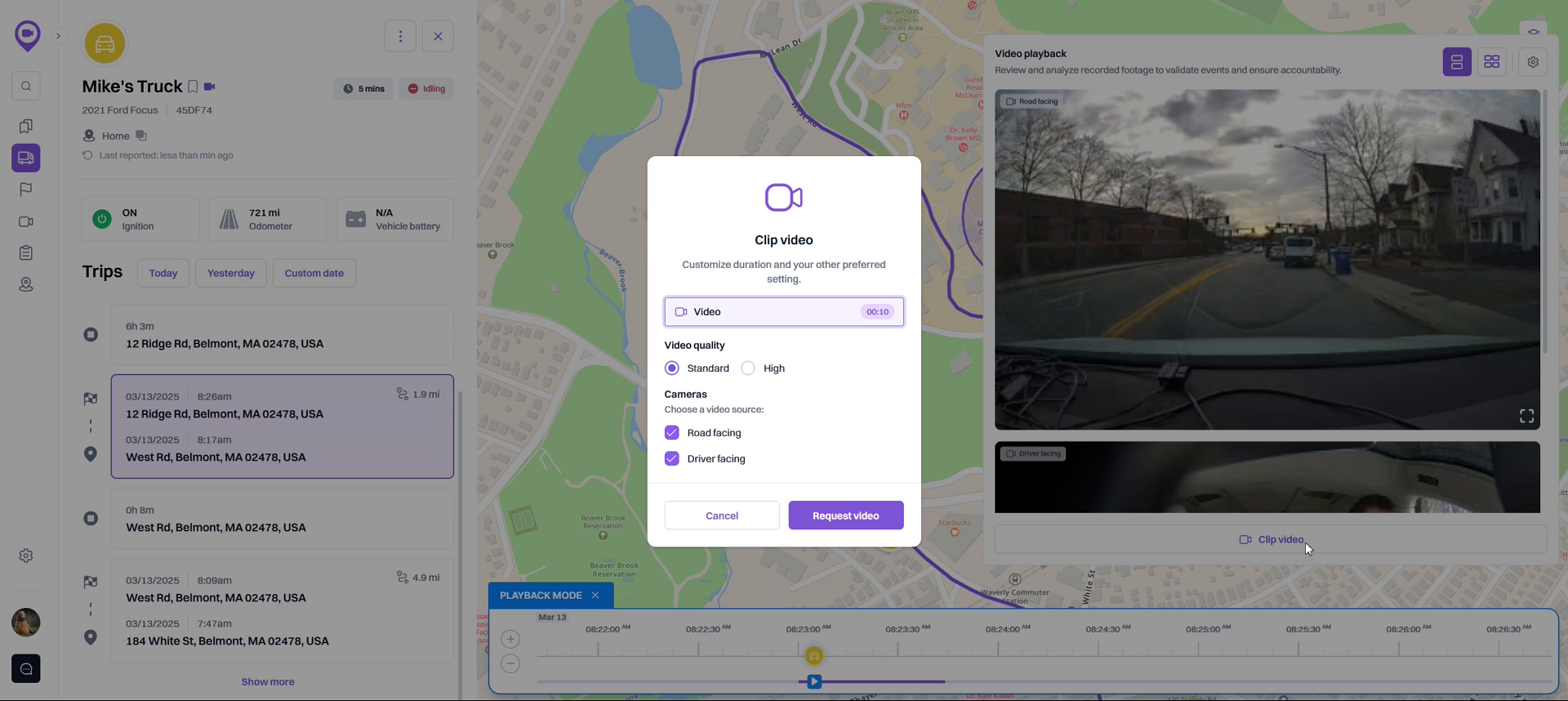
- In the Clip video dialog, choose the duration of the clip you want to save. You can select a time range before and after the current moment.
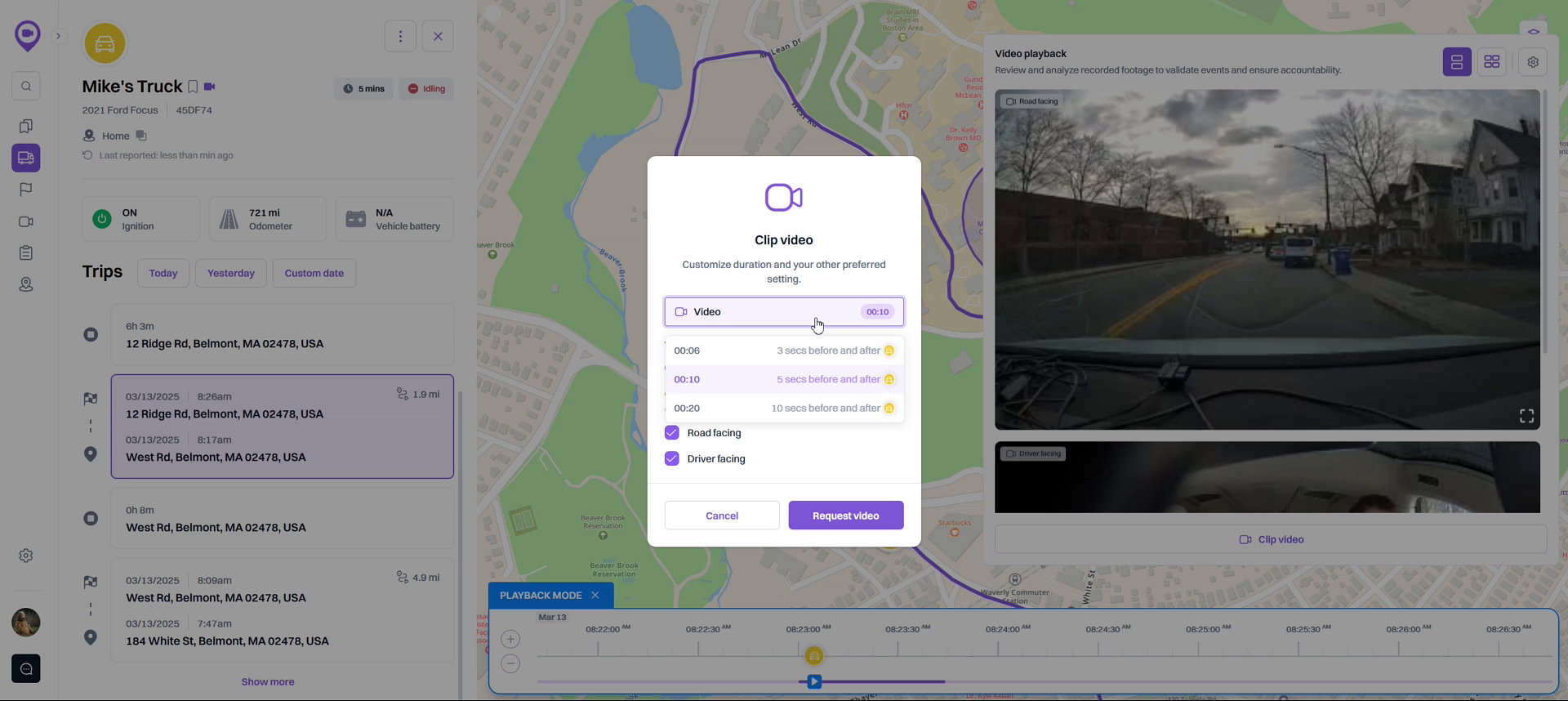
- Confirm the video quality and camera settings for your clip, then click Request video. The clip will be processed and saved to your media library.
Summary
This article explains how to create and save a specific video segment from a longer trip replay. By entering video playback mode and using the clipping tool, you can easily isolate important moments, select the desired duration and quality, and save the clip for future reference, ensuring critical evidence is always accessible.
Related
- Play back historical video footage for a trip
- Replay a vehicle's past trips on the map
- How to View a Vehicle's Trip History
Related Articles
How to Play Back Historical Video Footage for a Trip
How to Play Back Historical Video Footage for a Trip Reviewing past trips is essential for understanding on-road events. This guide shows you how to play back historical video footage from your vehicle's dash cam for any completed trip. You will need ...Custom Report (Video)
Custom Reports allow you to create a customised version of an existing report by selecting which columns (and their order) you want in the report, the data sort order and how the data rows are to be grouped and summarised. The output formats can also ...How to Create a Shareable Link to Track Vehicle Locations
How to Create a Shareable Link to Track Vehicle Locations This article will show you how to create a secure, shareable link that allows people outside of your organization, such as customers or partners, to track the real-time location of specific ...Video Overview
To access the Video tab, the Video monitoring and Commands services should be activated in the properties of the user account or billing plan. You can see only those units on the tab which have been added for billing in the management system. To work ...How to Review Video Footage of a Safety Incident
How to Review Video Footage of a Safety Incident This article shows you how to review video footage of specific safety incidents that affect a driver's score. Watching the recorded video provides crucial context to help you understand what happened, ...